 0a0c677404
* docs(community): 更新 QQ 群组信息
- 移除了旧的 QQ 群组信息并添加了新的群组。
- 确保所有群组信息的准确性和完整性。
- 提升文档的可读性和用户体验。

* docs(webui): 为忘记密码章节添加 FAQ 引用链接

- 在英文和中文文档的"忘记密码"章节末尾添加 TIP 提示框
- 提示框链接至对应 FAQ 条目,提供更详细的操作说明
- 增强文档之间的关联性,提升用户查阅体验

* docs(command): 新增 /stats 和 /provider 指令文档,更新 FAQ 管理员指令列表

- 在英文和中文的命令文档中添加 /stats 和 /provider 指令的详细使用说明
- 更新中英文 FAQ 页面的管理员指令列表,与最新的默认指令保持一致
- 确保中英文文档内容同步,提升文档准确性和用户查阅体验

* docs(websearch): 新增 Firecrawl 网页搜索提供商文档支持

- 在开发版配置文档中补充 websearch_provider 选项,加入 firecrawl 及对应密钥配置项
- 更新中英文网页搜索使用指南,将支持搜索源数量同步为五种并提供 Firecrawl 注册指引
- 确保中英文文档内容一致,提升配置说明的完整性和用户查阅体验

* docs(plugin-publish): 更新插件提交方式至新仓库

- 废弃通过 AstrBot 主仓库 Issue 提交插件的方式
- 新增警告框提示正确提交入口为 AstrBot_Plugins_Collection
- 同步更新中英文版插件发布文档
5.9 KiB
FAQ
Dashboard Related
Encountering 404 Error When Opening the Dashboard
Download AstrBot-vxxxxx-dashboard.zip from the release page, extract it, and move it to AstrBot/data. If it still doesn't work, try restarting your computer (based on community feedback).
First Login Account and Random Password
On first startup, the WebUI account is astrbot by default, and the default password is randomly generated (it is not a fixed hardcoded value). Check the startup logs and log in with the random initial password shown there:
[00:27:40.590] [Core] [INFO] [dashboard.server:523]:
 ✨✨✨
  AstrBot v4.24.3 WebUI is ready

   ➜  Local: http://localhost:6185
   ➜  Initial username: astrbot
   ➜  Initial password: UiYVpZxnW8k22IWqf0ru5pOy
   ➜  Change it after logging in
 ✨✨✨
Set dashboard.host in data/cmd_config.json to enable remote access.
UiYVpZxnW8k22IWqf0ru5pOy is the default password.
Forgot Dashboard Password
If you forgot your AstrBot dashboard password, find the "dashboard" field in AstrBot/data/cmd_config.json, for example:
  "dashboard": {
    "enable": true,
    "username": "astrbot",
    "password": "81e0c3dxxxxxxxxxxx78862e78",
    "pbkdf2_password": "pbkdf2_sha256$600000$1xxxxxxxxxxxxxxxxxxxxxxxxxxxxxxxxxxxxxxxxxxxxxxxxxx",
    "password_storage_upgraded": true,
    "password_change_required": true,
    "jwt_secret": "5e1b0280bcxxxxxxxxxxxxxxxxf4a",
    "host": "127.0.0.1",
    "port": 6185,
    "disable_access_log": true,
    "ssl": {
      "enable": false,
      "cert_file": "",
      "key_file": "",
      "ca_certs": ""
    }
  },
Delete the username, password, pbkdf2_password, password_storage_upgraded, password_change_required, and jwt_secret fields (with their values), then save.
The segment should look like:
  "dashboard": {
    "enable": true,
    "host": "127.0.0.1",
    "port": 6185,
    "disable_access_log": true,
    "ssl": {
      "enable": false,
      "cert_file": "",
      "key_file": "",
      "ca_certs": ""
    }
  },
After restart, AstrBot will automatically generate a random password with the fixed username astrbot; check the startup logs.
Correct Password Cannot Log In After Upgrading AstrBot
If you are sure the dashboard password is correct but still cannot log in after upgrading AstrBot, the old WebUI static files may be incompatible with the newer backend.
Solution:
- Stop AstrBot.
- Delete the
distfolder under AstrBot'sdatadirectory:AstrBot/data/dist. - Restart AstrBot.
- Access the dashboard in your browser. Press
Ctrl+Shift+RorCtrl+F5(orCmd+Shift+Ron macOS) to force refresh the page.
After restart, AstrBot will reload or download WebUI files that match the current version.
Bot Core Related
How to Let AstrBot Control My Mac / Windows / Linux Computer?
- In AstrBot WebUI's
Config -> General Config, findUse Computer Capabilities, and selectlocalfor the runtime environment. - In
Config -> Other Config, findAdmin ID List, and add your user ID (you can get it through the/sidcommand).
Tip
For security reasons, when runtime environment is set to
local, AstrBot only allows AstrBot administrators to use computer capabilities by default. You can selectsandboxfor the runtime environment, which allows all users to use computer capabilities (in an isolated sandbox). For more details, see AstrBot Sandbox Environment
Bot Cannot Chat in Group Conversations
- In group chats, to prevent message flooding, the bot will not respond to every monitored message. Please try mentioning (@) the bot or using a wake word to chat, such as the default
/, for example:/hello.
No Permission to Execute Admin Commands
/name, /provider, /dashboard_update, /op, /deop, /persona, /llm, /plugin, /model, /groupneware the default admin commands. You can use the/sidcommand to get a user's ID, then add it to the admin ID list in Settings -> Other Settings.
Chinese Characters Garbled When Locally Rendering Markdown Images (t2i)
You can customize the font. See details -> #957
Recommended font: Maple Mono.
Cannot Parse API Returned Completion & LLM Returns <empty content>
This is because the provider's API returned empty text. Try the following steps:
- Check if the API key is still valid
- Check if the API call limit or quota has been reached
- Check network connection
- Try reset
- Lower the maximum conversation count setting
- Switch to another model from the same provider / a different provider
Plugin Related
Cannot Install Plugin
- Plugins are installed via GitHub. Access to GitHub from mainland China can indeed be unstable. You can use a proxy, then go to Other Settings -> HTTP Proxy to configure it. Alternatively, download the plugin archive directly and upload it.
Error No module named 'xxx' After Installing Plugin
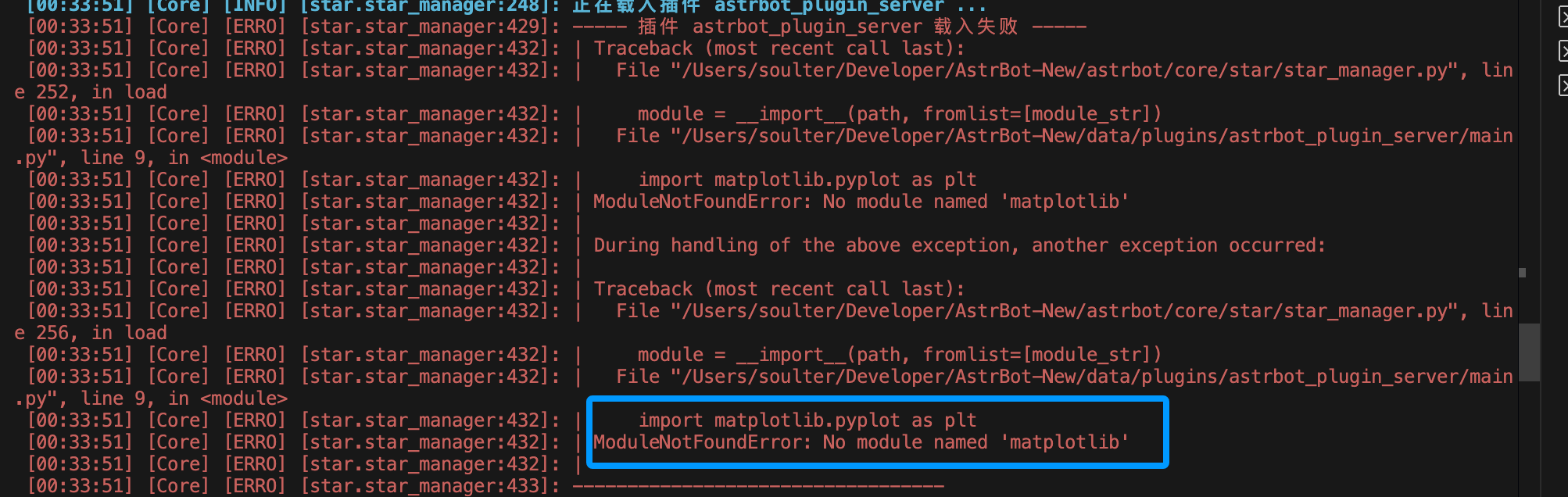
This is because the plugin's dependencies were not installed properly. Normally, AstrBot automatically installs plugin dependencies after installing the plugin, but installation may fail in the following situations:
- Network issues preventing dependency downloads
- Plugin author did not include a
requirements.txtfile - Python version incompatibility
Solution:
Based on the error message, refer to the plugin's README to manually install dependencies. You can install dependencies in the AstrBot WebUI under Console -> Install Pip Package.
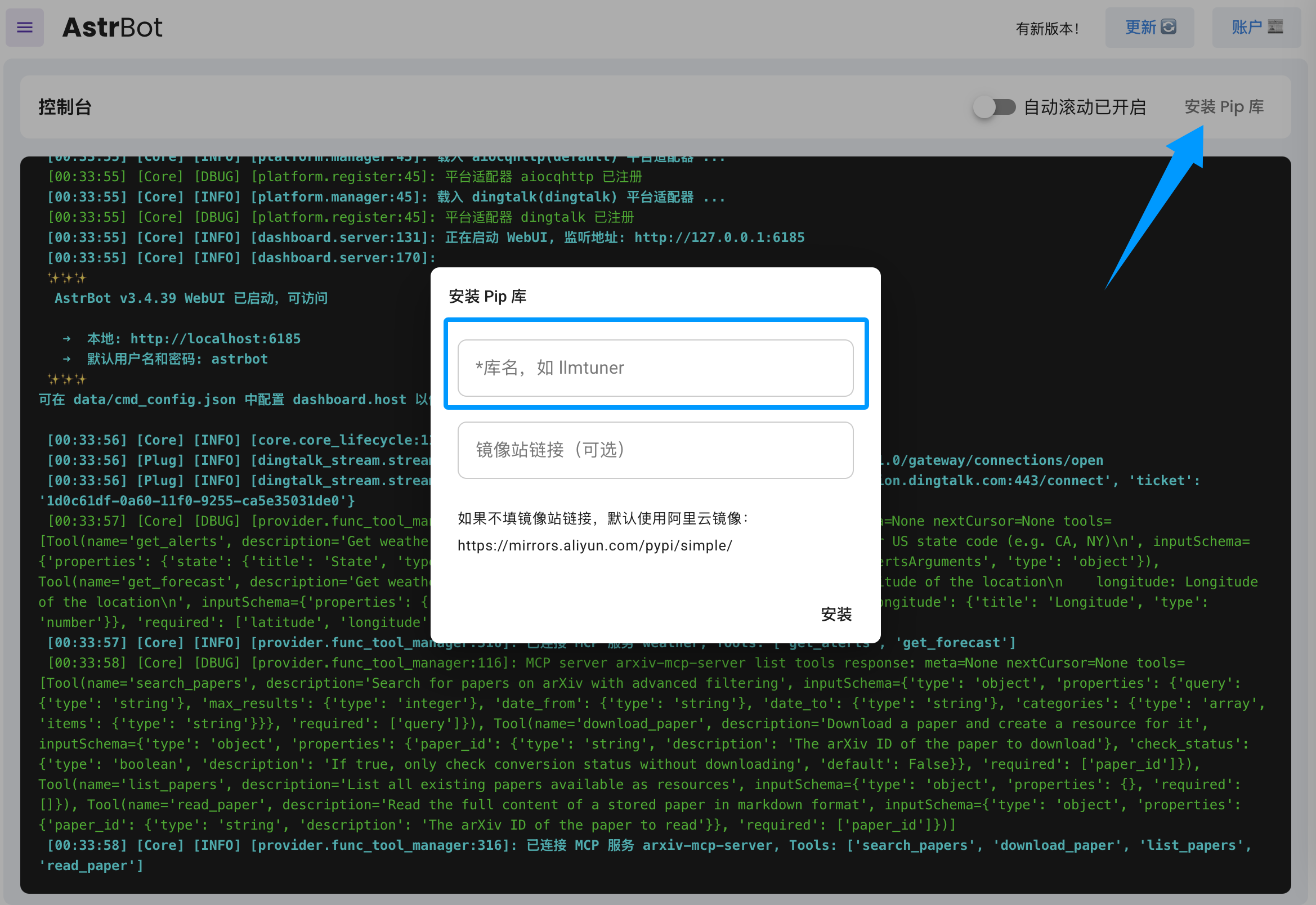
If you find that the plugin author did not include a requirements.txt file, please submit an issue in the plugin repository to remind the author to add it.