 597ed67467
* fix: avoid lsp client cancel scope leaks

* fix: observe lsp reader task failures

* fix: trim trailing whitespace in docs

* fix: harden lsp client reconnect handling

* fix: refine lsp client test coverage

* fix: harden lsp reader task teardown

* fix: refine lsp reader failure handling

* fix: centralize lsp reader lifecycle

* docs: fix platform adapter session type

* test: shorten hanging lsp fixture sleep

* docs: translate ai guide details label

* fix: simplify lsp reader task lifecycle
2.3 KiB
Connect to KOOK
Supported Message Types
Version v4.19.2
| Message Type | Receive | Send | Remarks |
|---|---|---|---|
| Text | Yes | Yes | Supports official kmarkdown syntax |
| Image | Yes | Yes | Supports external links; jpeg, gif, png only |
| Audio | Yes | Yes | Supports external links |
| Video | Yes | Yes | Supports external links; mp4, mov only |
| File | Yes | Yes | Supports external links |
| Card (JSON) | Yes | Yes | See Kook Docs - Card Messages |
Proactive message push: Supported Message receiving mode: WebSocket
Create a Bot on Kook
-
Go to the Kook Developer Center and follow these steps:
-
Log in and complete identity verification.
-
Click "Create Application" and customize your Bot's nickname.
-
Enter the application dashboard, select the Bot module, and enable WebSocket connection mode. Make sure to save the generated Token, as you will need it for the subsequent AstrBot configuration.
-
Under the "Bot" page in the left sidebar, click "Invite Link" and set the role permissions (full permissions are recommended to ensure all features work).
-
Copy the invite link, open it in your browser, and add the bot to your desired server.
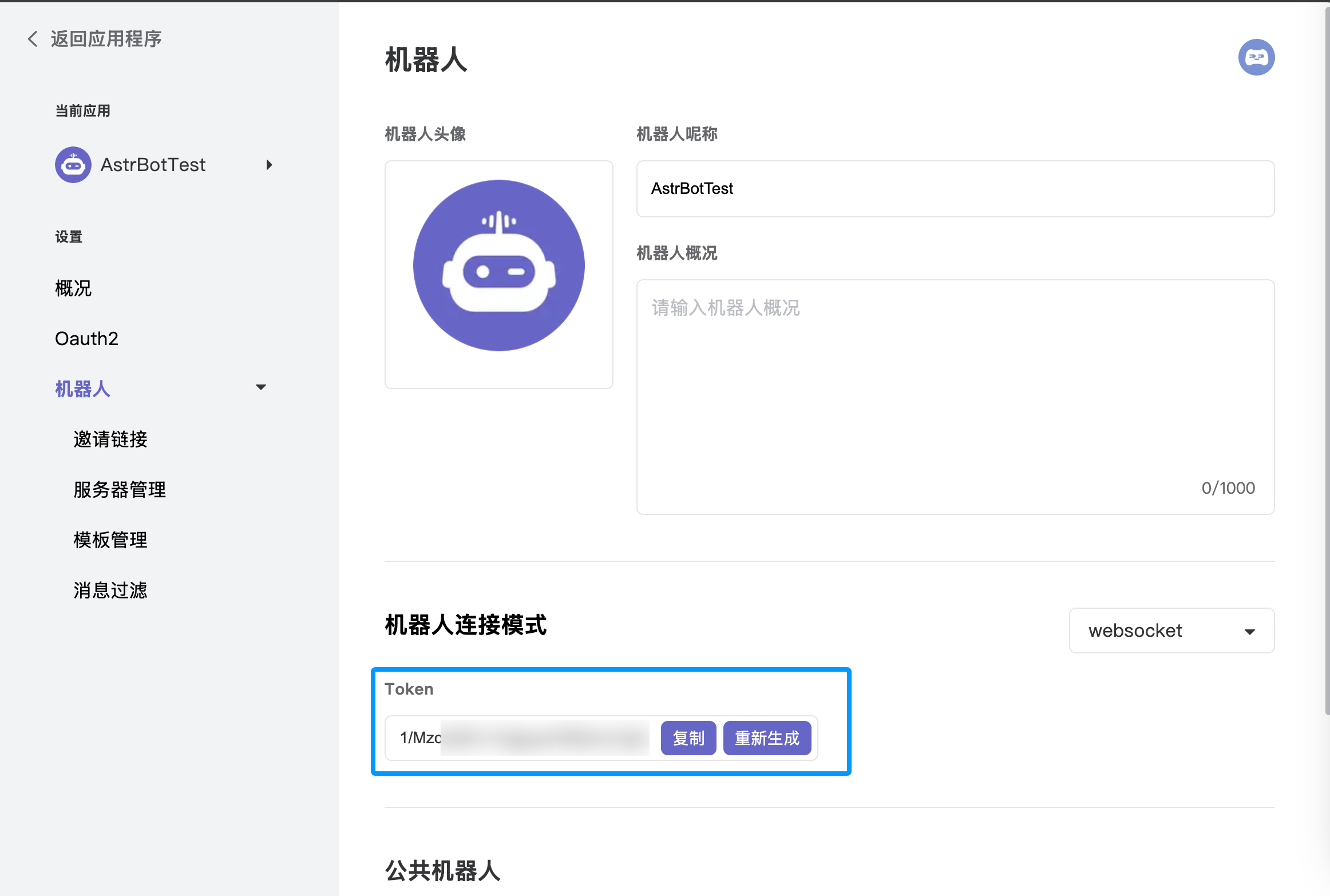
Configure in AstrBot
-
Access the AstrBot management panel.
-
Click Bots in the left sidebar.
-
Click
+ Create Boton the right side of the interface. -
Select the
kookadapter. -
Fill in the configuration fields:
- ID (id): Any name to identify this specific instance.
- Enable (enable): Check the box.
- Bot Token: Paste the Token generated from the Kook Developer Center.
-
Click
Saveafter filling in the details. -
Finally, in a Kook server channel (create one first if you haven't), @ the bot and type
/sid. If the bot responds, the configuration is successful.