mirror of
https://github.com/AstrBotDevs/AstrBot
synced 2026-07-17 01:49:15 +08:00
 fd4fe84310
* Update listen-message-event.md

* Update other.md

* Update send-message.md

* Update ai.md

* Update ai.md

* Update send-message.md

* Update listen-message-event.md

* Delete docs/zh/dev/star/guides/env.md

* Delete docs/en/dev/star/guides/env.md

* Update simple.md

* Update discord.md

* Update discord.md

* Update matrix.md

* Update matrix.md

* Update index.md

* Update index.md

* Update openapi.md

* Update ppio.md

* Update ppio.md

* Update function-calling.md

* Update function-calling.md

* Update config.mjs

* docs: add EN desktop deployment page

* Update plugin.md

* Update ai.md

* Update ai.md

* Update ai.md

* Update desktop.md
42 lines
1.9 KiB
Markdown
42 lines
1.9 KiB
Markdown
# Connect PPIO Cloud
|
|
|
|
PPIO Cloud is a leading independent distributed cloud computing provider in China, offering stable, affordable, and even free model services.
|
|
|
|
## Preparation
|
|
|
|
Open the [PPIO Cloud website](https://ppio.cn/user/register?invited_by=AIOONE) and register an account (accounts registered through this link will receive a ¥15 voucher).
|
|
|
|
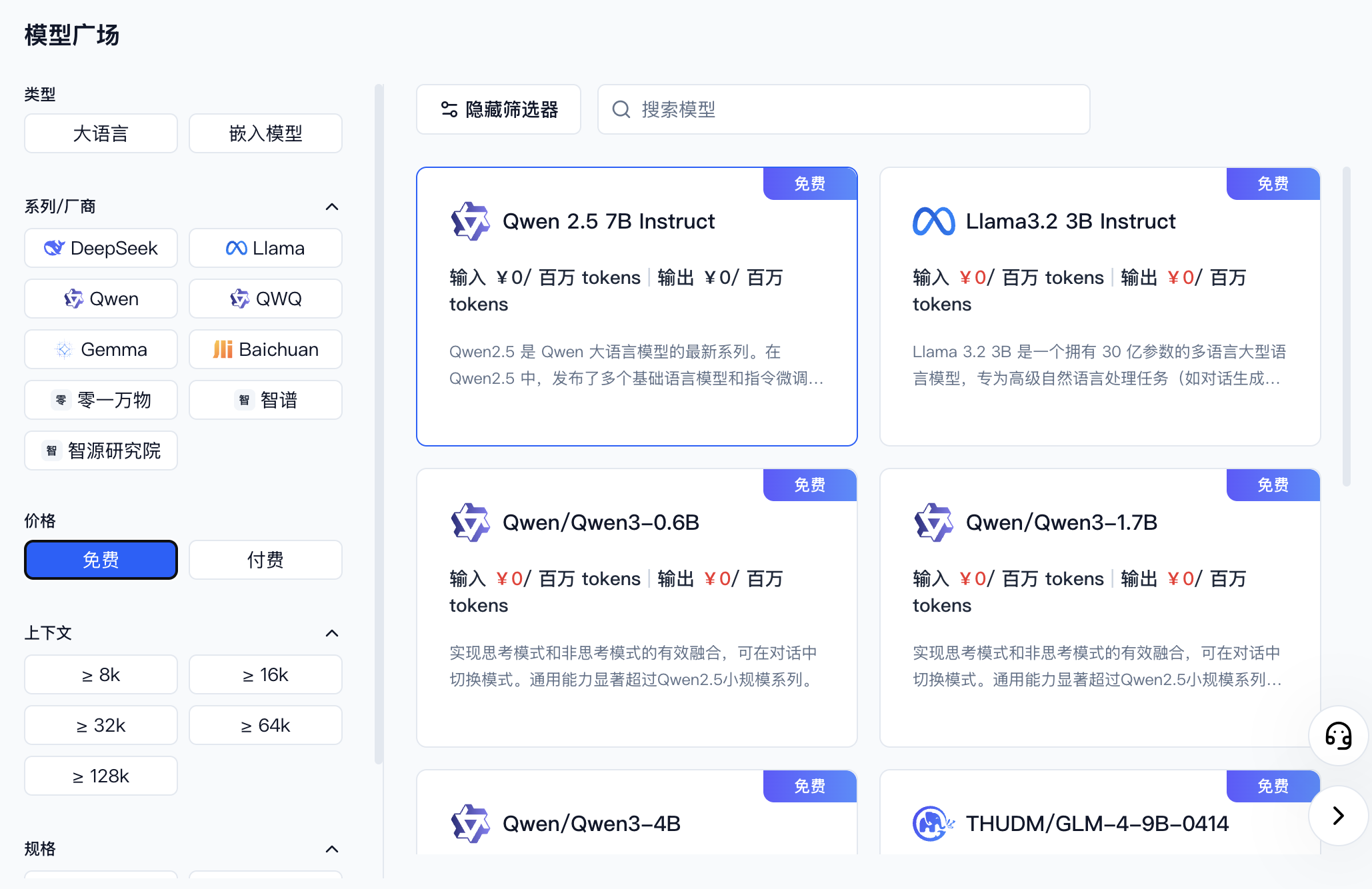
Go to [Model API Service](https://ppio.cn/model-api/console) and find the model you want to use. You can filter by provider or select free models.
|
|
|
|
|
|
|
|
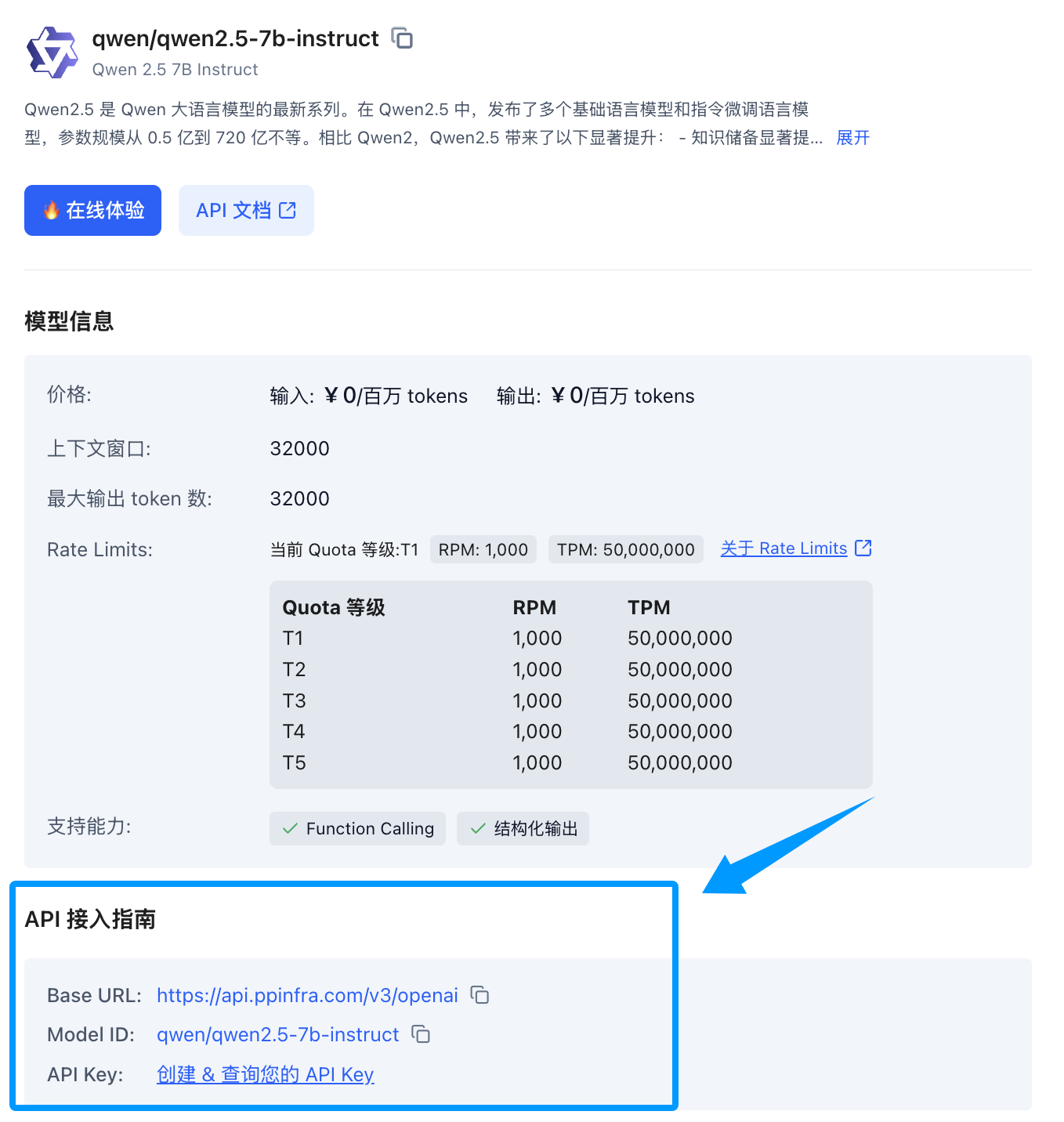
Once you find the model, click its card to expand a detail panel on the right. Scroll down to the API integration guide — if you haven't created a key yet, click to create one.
|
|
|
|
|
|
|
|
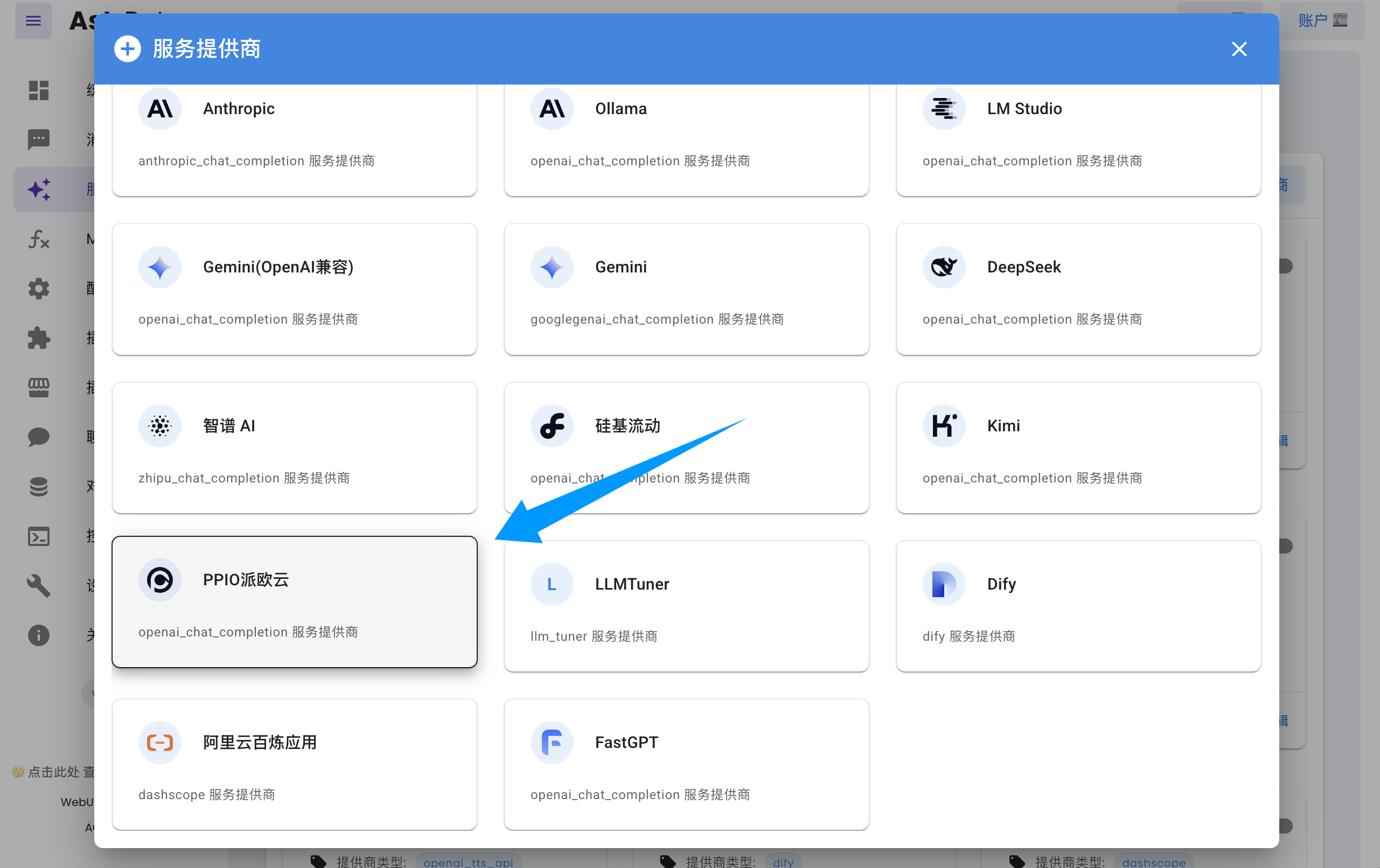
Open the AstrBot dashboard → Service Providers page, click **Add Provider**, find and click `PPIO Cloud` (requires version >= 3.5.10; older versions are also supported, see below).
|
|
|
|
|
|
|
|
Fill in the API Key and model name in the dialog form, then click **Save** to complete the setup.
|
|
|
|
> [!TIP]
|
|
> If you are using an older version of AstrBot (< 3.5.10), open the AstrBot dashboard → Service Providers page, click **Add Provider**, find `OpenAI`, and click to enter.
|
|
> 1. Set the ID to `ppio` (any name works)
|
|
> 2. Set `API Base URL` to `https://api.ppinfra.com/v3/openai`
|
|
> 3. Fill in the API Key and model name in the dialog form, then click **Save** to complete the setup.
|
|
|
|
## Usage
|
|
|
|
Send the `/provider` command to the bot to switch to the PPIO Cloud provider you just added.
|
|
|
|
## FAQ
|
|
|
|
#### `400` Error
|
|
|
|
```log
|
|
Error code: 400 - {'code': 400, 'message': '"auto" tool choice requires --enable-auto-tool-choice and --tool-call-parser to be set', 'type': 'BadRequestError'}
|
|
```
|
|
|
|
Disable all calling tools in the WebUI, or switch to a different model.
|