mirror of
https://github.com/AstrBotDevs/AstrBot
synced 2026-07-15 17:30:13 +08:00

93 lines
4.2 KiB
Markdown
93 lines
4.2 KiB
Markdown
# Deploy via Compshare
|
|
|
|
Compshare is UCloud's GPU compute rental and LLM API platform, offering compute resources for AI, deep learning, and scientific workloads.
|
|
|
|
AstrBot provides an Ollama + AstrBot one-click self-deployment image on Compshare, and also supports Compshare model APIs.
|
|
|
|
## Use the Ollama + AstrBot One-Click Image
|
|
|
|
> Default image spec: RTX 3090 24GB + Intel 16-core + 64GB RAM + 200GB system disk. Billing is pay-as-you-go, so please monitor your balance.
|
|
|
|
1. Register a Compshare account via [this link](https://passport.compshare.cn/register?referral_code=FV7DcGowN4hB5UuXKgpE74).
|
|
2. Open the [AstrBot image page](https://www.compshare.cn/images/0oX7xoGrzfre) and create an instance.
|
|
3. After deployment, open `JupyterLab` from the [console](https://console.compshare.cn/light-gpu/console/resources).
|
|
4. In JupyterLab, create a new terminal and run:
|
|
|
|
```bash
|
|
cd
|
|
./astrbot_booter.sh
|
|
```
|
|
|
|
If startup succeeds, you should see output similar to:
|
|
|
|
```txt
|
|
(py312) root@f8396035c96d:/workspace# cd
|
|
./astrbot_booter.sh
|
|
Starting AstrBot...
|
|
Starting ollama...
|
|
Both services started in the background.
|
|
```
|
|
|
|
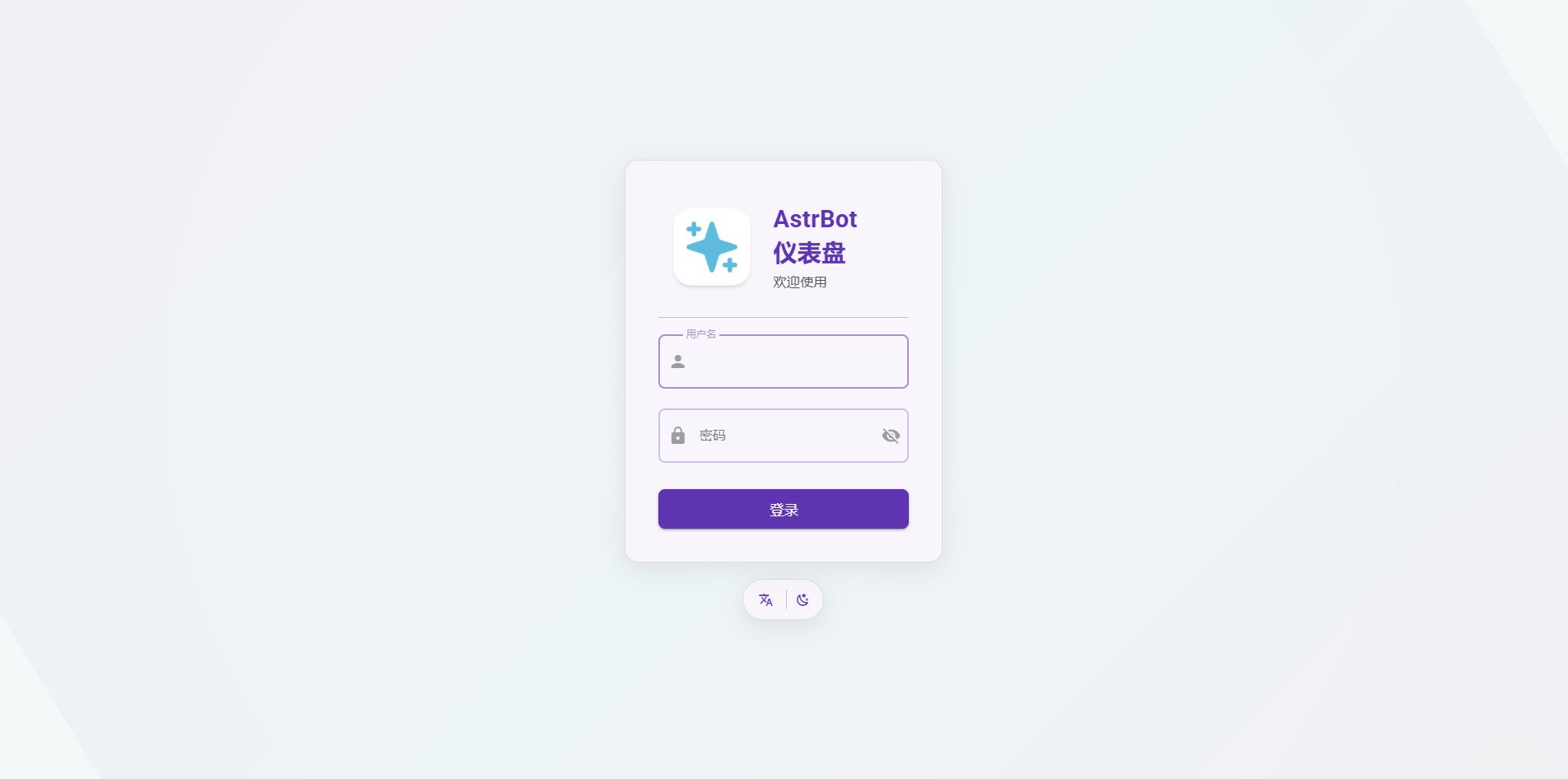
After startup, open `http://<instance-public-ip>:6185` in your browser to access the AstrBot dashboard.
|
|
You can find the public IP in Console -> Basic Network (Public).
|
|
|
|
> It may take around 30 seconds before the page becomes reachable.
|
|
|
|
|
|
|
|
Use the random password printed in startup logs for first-time login, and use the username shown in the logs (usually `astrbot`). Change it immediately after login.
|
|
|
|
After logging in, you can reset your password and continue setup.
|
|
|
|
The instance imports `Ollama-DeepSeek-R1-32B` by default.
|
|
|
|
## Use Other Models
|
|
|
|
### Pull Models with Ollama
|
|
|
|
The image includes Ollama. You can pull any model and host it locally on the instance.
|
|
|
|
1. Choose a model from [Ollama Search](https://ollama.com/search).
|
|
2. Connect to the instance terminal via SSH (from Compshare Console -> Instance List -> Console Command and Password).
|
|
3. Run `ollama pull <model-name>` and wait for completion.
|
|
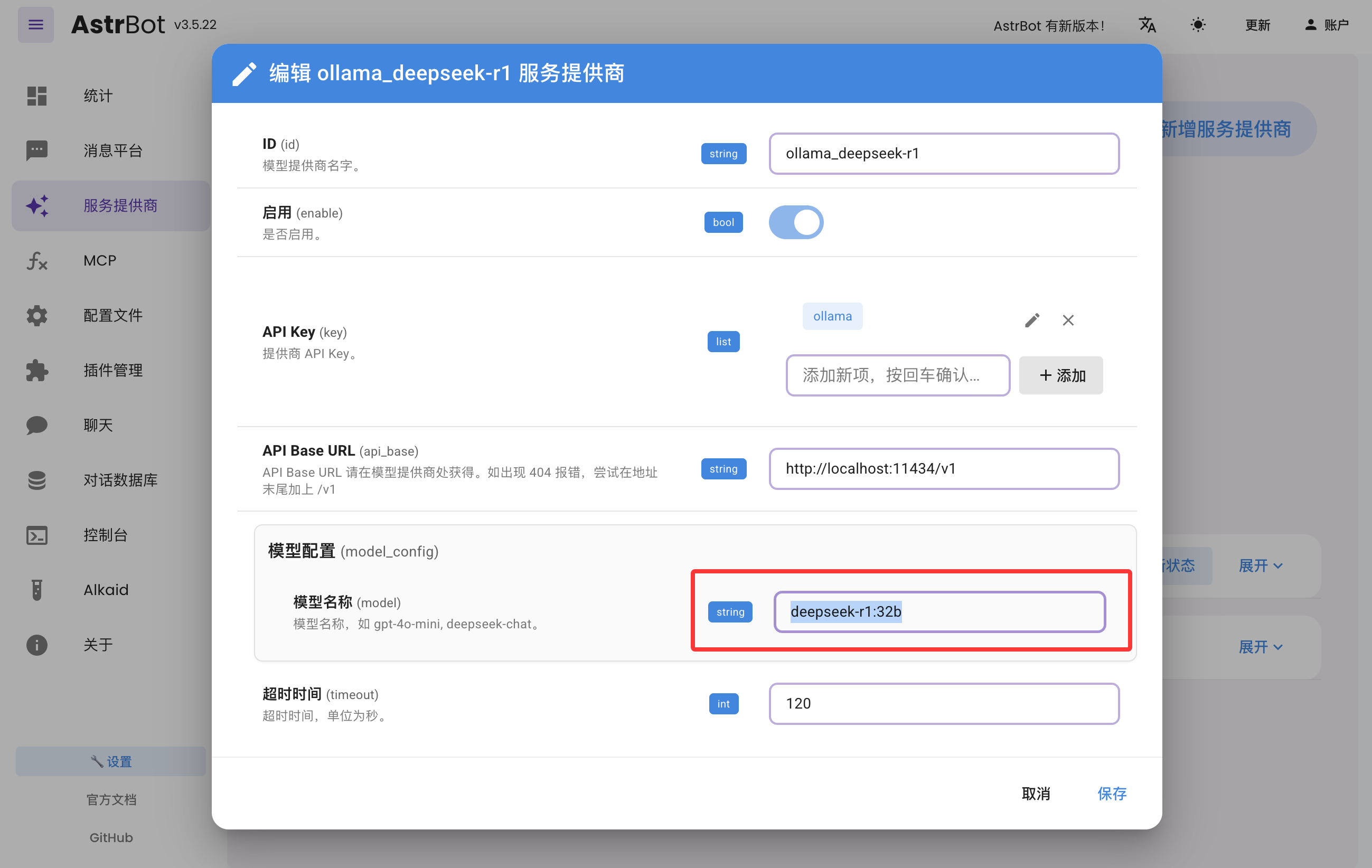
4. In AstrBot Dashboard -> Providers, edit `ollama_deepseek-r1`, update the model name, and save.
|
|
|
|
|
|
|
|
### Use Compshare Model API
|
|
|
|
AstrBot supports direct access to model APIs provided by Compshare.
|
|
|
|
1. Find the model you want at [Compshare Model Center](https://console.compshare.cn/light-gpu/model-center).
|
|
2. In AstrBot Dashboard -> Providers, click `+ Add Provider`, then choose Compshare.
|
|
If Compshare is not listed, choose OpenAI-compatible access and set API Base URL to `https://api.modelverse.cn/v1`.
|
|
Enter the model name in model configuration and save.
|
|
|
|
### Test
|
|
|
|
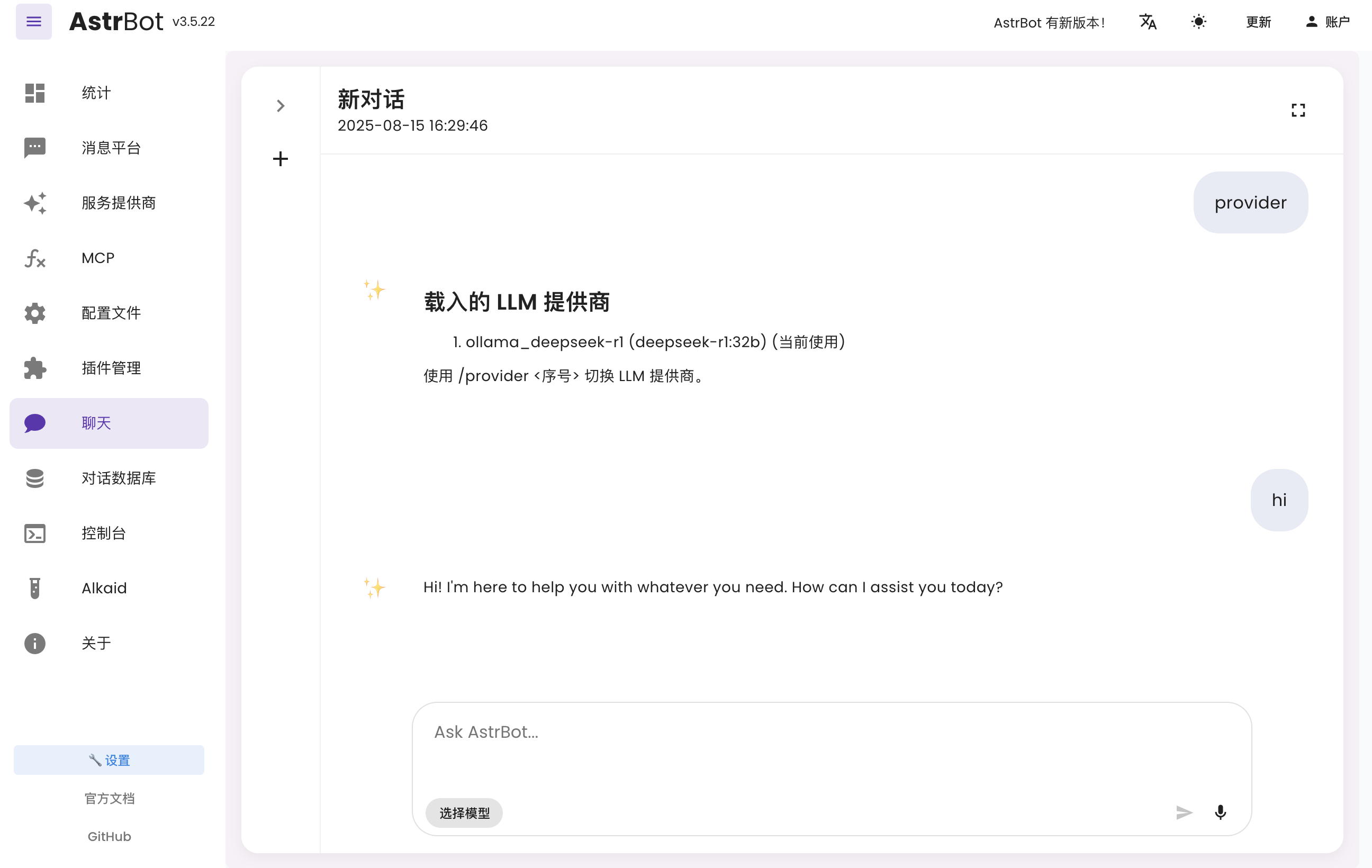
In AstrBot Dashboard, click `Chat` and run `/provider` to view and switch your active provider.
|
|
|
|
Then send a normal message to test whether the model works.
|
|
|
|
|
|
|
|
## Connect to Messaging Platforms
|
|
|
|
You can follow the latest platform integration guides in the [AstrBot Documentation](https://docs.astrbot.app/en/what-is-astrbot.html).
|
|
Open the docs and check the left sidebar under Messaging Platforms.
|
|
|
|
- Lark: [Connect to Lark](https://docs.astrbot.app/en/platform/lark.html)
|
|
- LINE: [Connect to LINE](https://docs.astrbot.app/en/platform/line.html)
|
|
- DingTalk: [Connect to DingTalk](https://docs.astrbot.app/en/platform/dingtalk.html)
|
|
- WeCom: [Connect to WeCom](https://docs.astrbot.app/en/platform/wecom.html)
|
|
- WeChat Official Account: [Connect to WeChat Official Account](https://docs.astrbot.app/en/platform/weixin-official-account.html)
|
|
- QQ Official Bot: [Connect to QQ Official API](https://docs.astrbot.app/en/platform/qqofficial/webhook.html)
|
|
- KOOK: [Connect to KOOK](https://docs.astrbot.app/en/platform/kook.html)
|
|
- Slack: [Connect to Slack](https://docs.astrbot.app/en/platform/slack.html)
|
|
- Discord: [Connect to Discord](https://docs.astrbot.app/en/platform/discord.html)
|
|
- More methods: [AstrBot Documentation](https://docs.astrbot.app/en/what-is-astrbot.html)
|
|
|
|
## More Features
|
|
|
|
For more capabilities, see the [AstrBot Documentation](https://docs.astrbot.app/en/what-is-astrbot.html).
|