mirror of
https://github.com/AstrBotDevs/AstrBot
synced 2026-07-15 17:30:13 +08:00

80 lines
2.9 KiB
Markdown
80 lines
2.9 KiB
Markdown
# Connect to DingTalk
|
|
|
|
## Supported Basic Message Types
|
|
|
|
> Version v4.15.0.
|
|
|
|
| Message Type | Receive | Send | Notes |
|
|
| --- | --- | --- | --- |
|
|
| Text | Yes | Yes | |
|
|
| Image | Yes | Yes | |
|
|
| Voice | No | Yes | |
|
|
| Video | No | Yes | |
|
|
| File | No | Yes | |
|
|
|
|
Proactive message push: Supported.
|
|
|
|
## Create and Configure the App
|
|
|
|
DingTalk supports two setup methods: one-click QR creation in AstrBot, or manually creating an app in DingTalk Open Platform.
|
|
|
|
### Option 1: One-click QR Creation
|
|
|
|
AstrBot version requirement: >= v4.25.0.
|
|
|
|
Open AstrBot Dashboard -> `Bots` -> `+ Create Bot`, then select `DingTalk`.
|
|
|
|
Under `Creation Method`, select `One-click QR setup`, scan the QR code with the DingTalk mobile app, then create or bind a bot on the DingTalk authorization page. After creation succeeds, AstrBot automatically fills in `ClientID` and `ClientSecret`. Click `Save` to finish.
|
|
|
|
After QR creation succeeds, continue checking the event subscription, version release, and group installation steps below.
|
|
|
|
### Option 2: Manual Creation
|
|
|
|
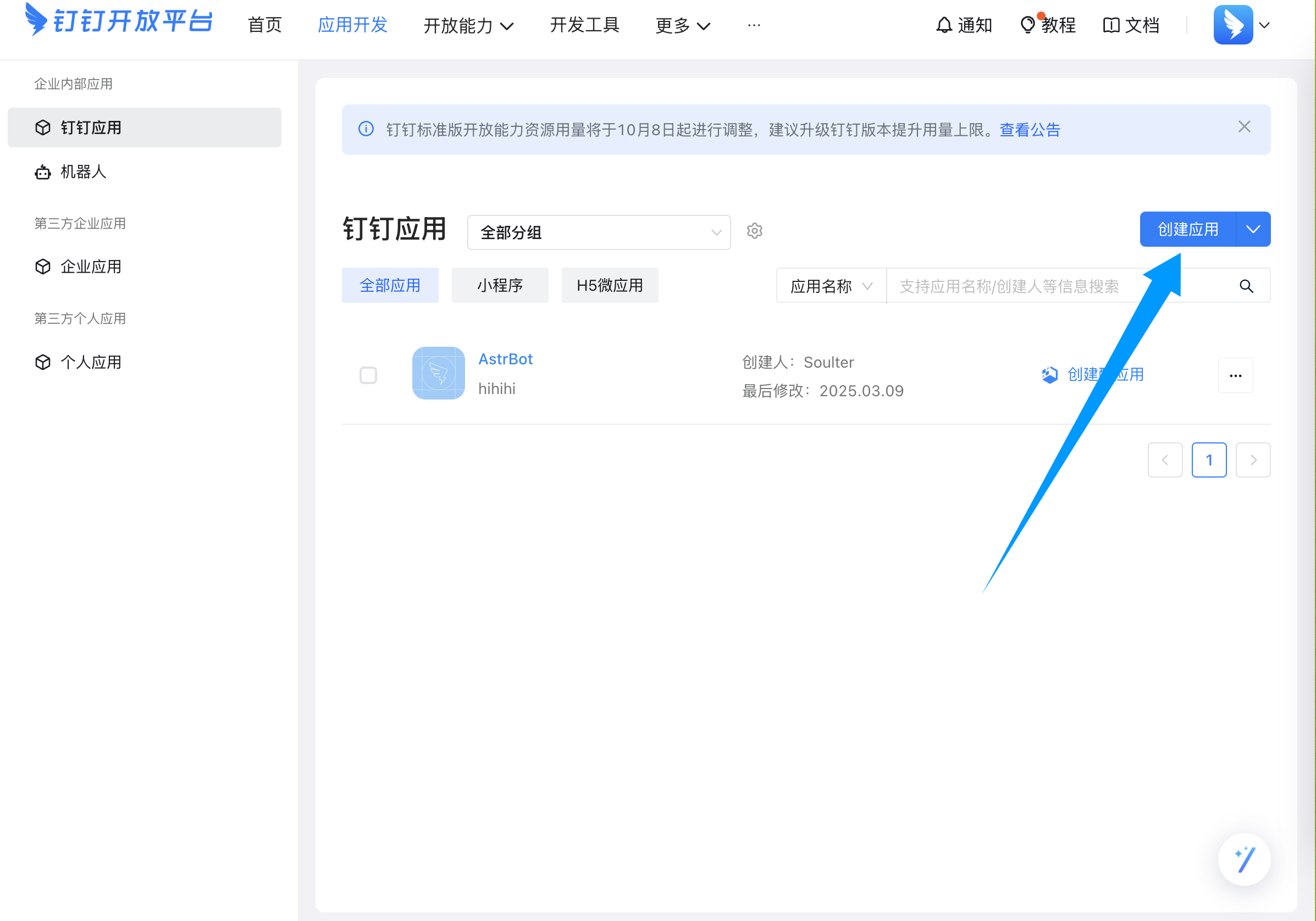
Go to the [DingTalk Open Platform](https://open-dev.dingtalk.com/fe/app), then create an app:
|
|
|
|
|
|
|
|
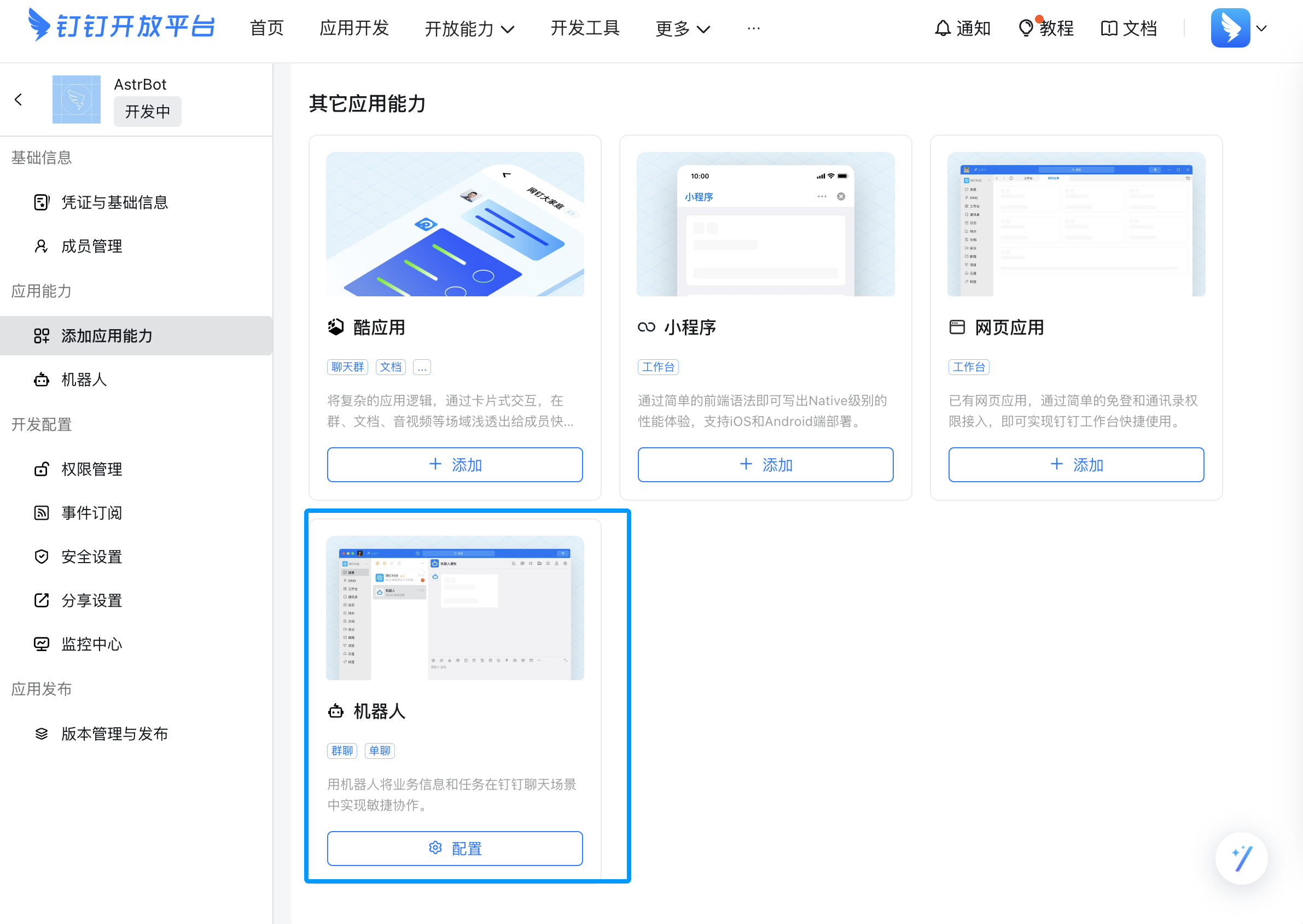
After creation, add app capability and choose Bot:
|
|
|
|
|
|
|
|
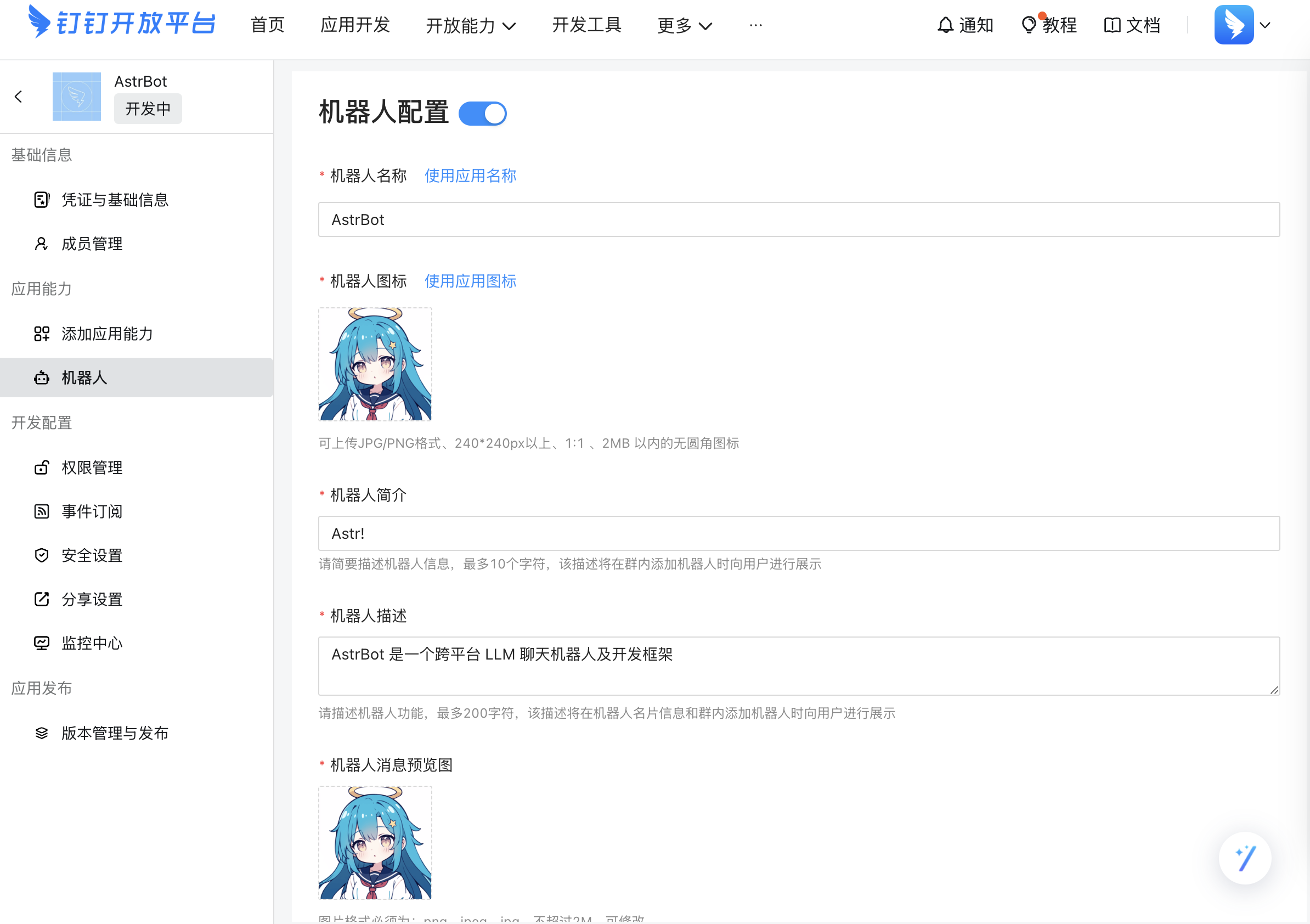
Open Bot settings and fill in bot information:
|
|
|
|
|
|
|
|
After confirming all settings, click Publish.
|
|
|
|
Go to Credentials & Basic Information, then copy `ClientID` and `ClientSecret`.
|
|
|
|
## Connect in AstrBot
|
|
|
|
Open AstrBot Dashboard -> `Bots` -> `+ Create Bot`, then create a DingTalk adapter.
|
|
|
|
If you want AstrBot to create the app for you, select `One-click QR setup` and complete the scan. If you already created the app yourself, select `Manual setup`, fill in `ClientID` and `ClientSecret`, then click Save. AstrBot will request authorization from DingTalk Open Platform automatically.
|
|
|
|
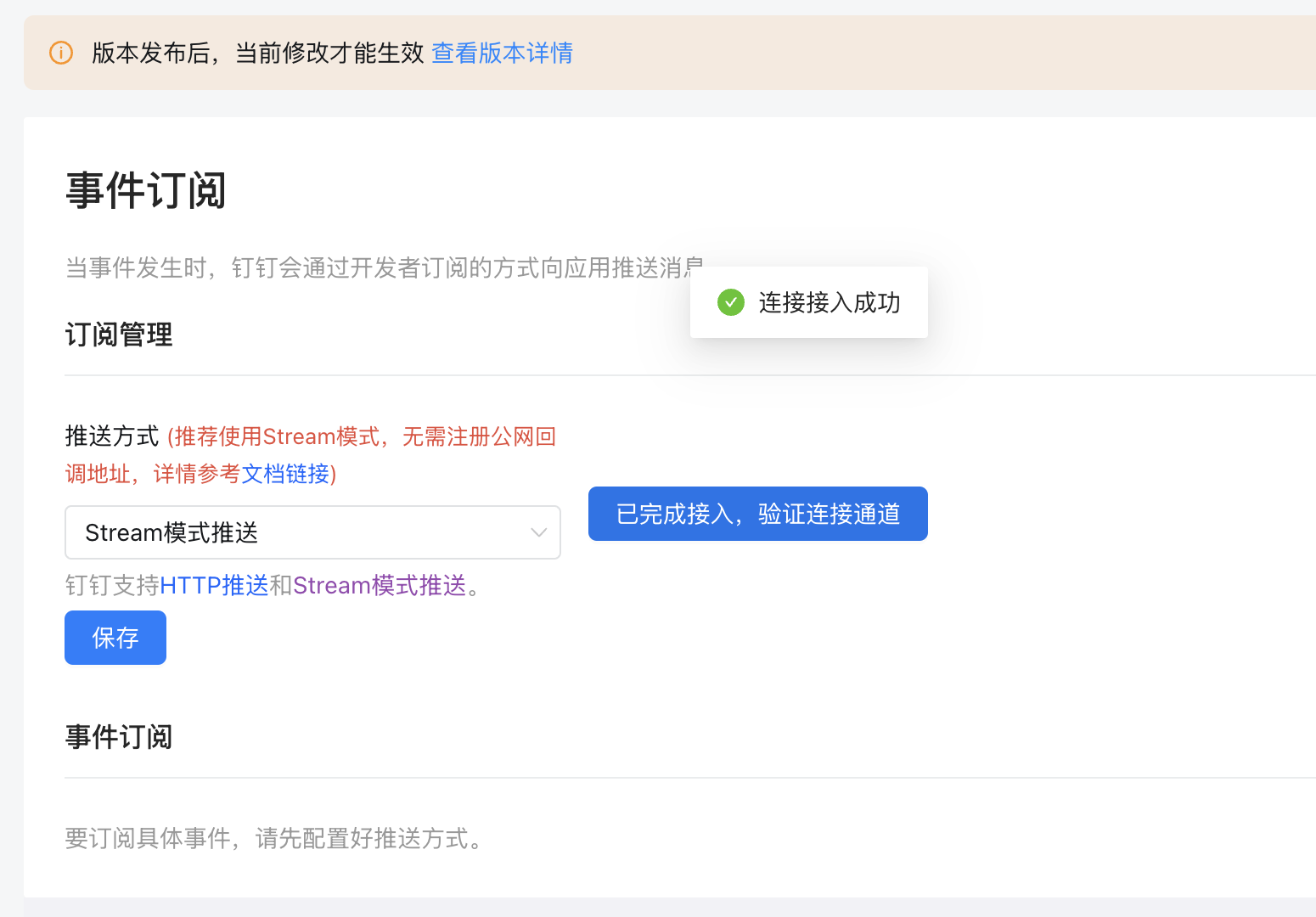
Back in DingTalk Open Platform, open Event Subscriptions, select `Stream mode push`, and click Save. If successful, you will see a connected status.
|
|
|
|
|
|
|
|
Save the configuration.
|
|
|
|
## Publish a Version
|
|
|
|
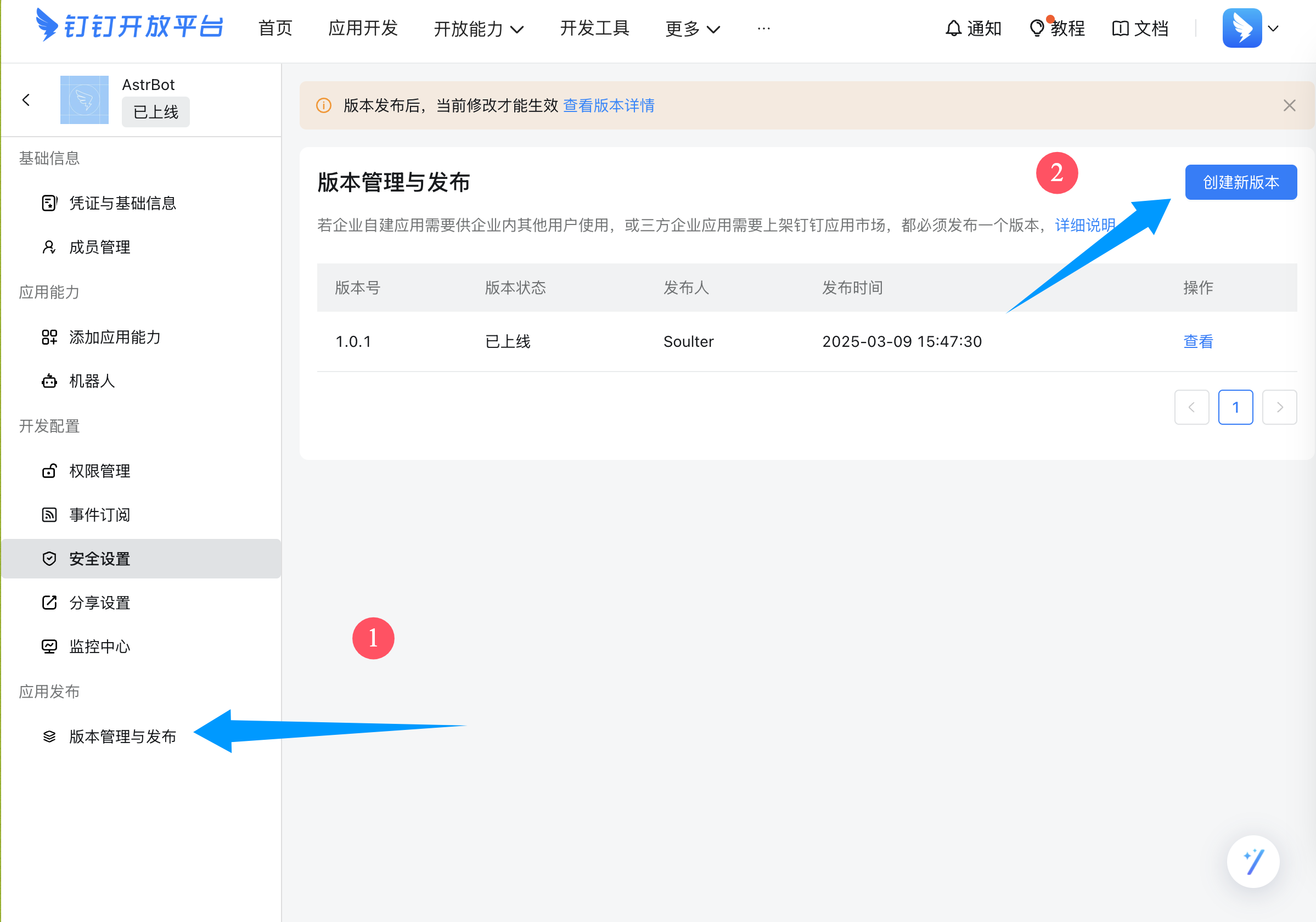
In the left sidebar, open Version Management and Release, then create a new version.
|
|
|
|
Fill in version number, description, and visibility scope (all employees or as needed), then save and publish.
|
|
|
|
|
|
|
|
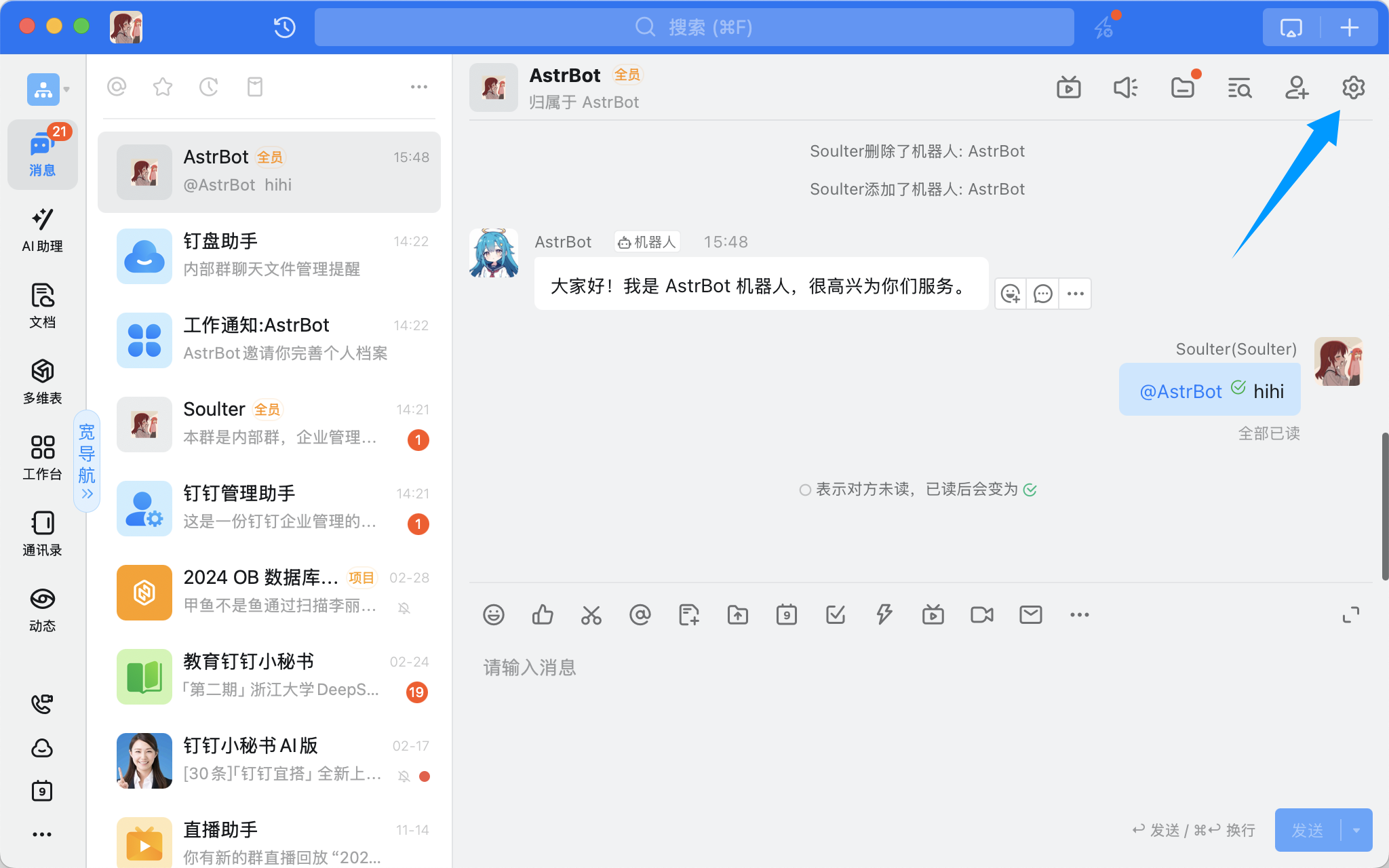
Open a DingTalk group chat and click the top-right settings:
|
|
|
|
|
|
|
|
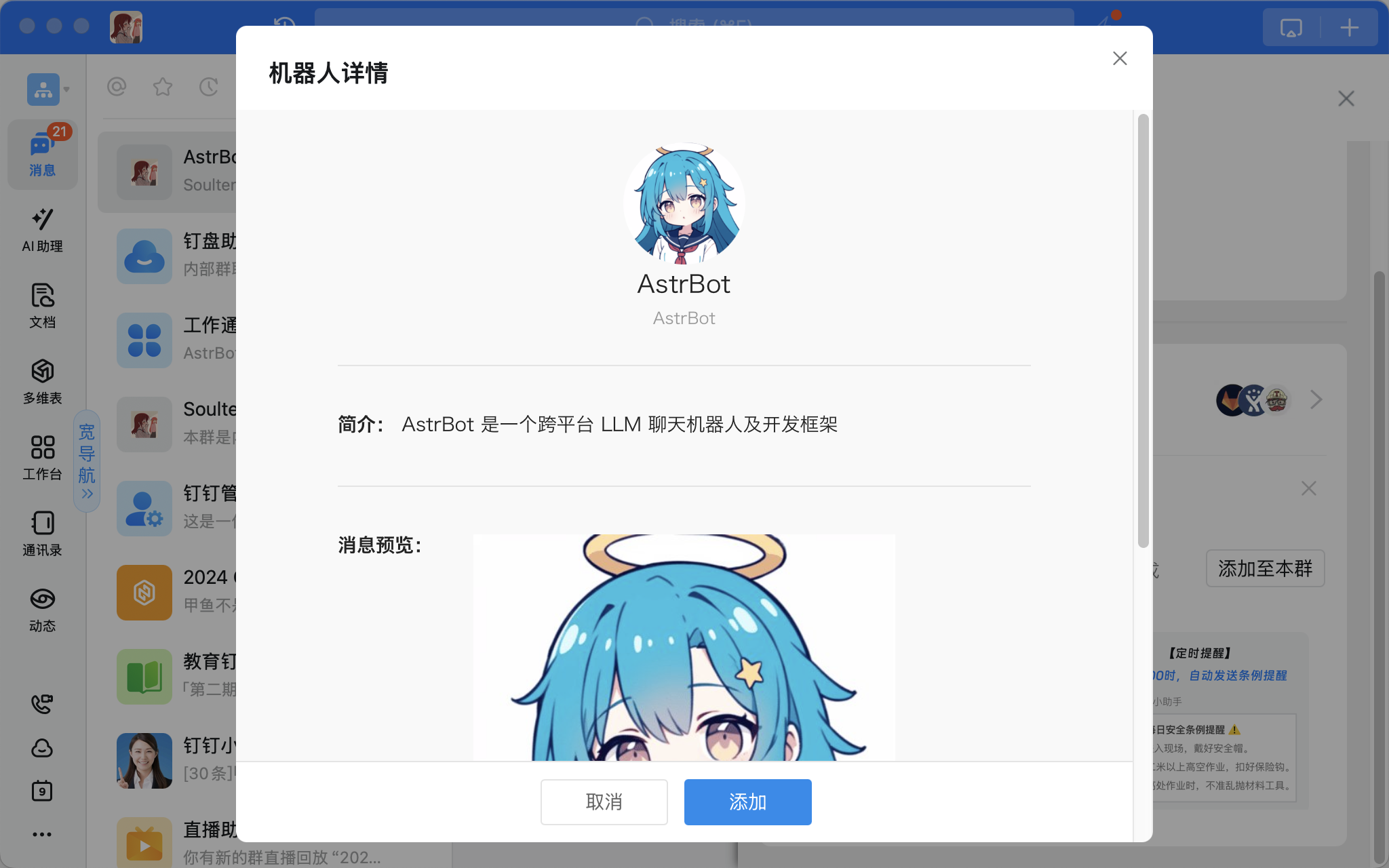
Scroll down to Add Bot, select the bot you just created, and add it:
|
|
|
|
|
|
|
|
## Done
|
|
|
|
In a group chat, mention the bot and send `/help`. If the bot replies, the integration is successful.
|