mirror of
https://github.com/AstrBotDevs/AstrBot
synced 2026-07-16 01:40:15 +08:00

147 lines
6.0 KiB
Markdown
147 lines
6.0 KiB
Markdown
# FAQ
|
|
|
|
## Dashboard Related
|
|
|
|
### Encountering 404 Error When Opening the Dashboard
|
|
|
|
Download `AstrBot-vxxxxx-dashboard.zip` from the [release](https://github.com/AstrBotDevs/AstrBot/releases) page, extract it, and move it to `AstrBot/data`. If it still doesn't work, try restarting your computer (based on community feedback).
|
|
|
|
### First Login Account and Random Password
|
|
|
|
On first startup, the WebUI account is `astrbot` by default, and the default password is randomly generated (it is not a fixed hardcoded value). Check the startup logs and log in with the random initial password shown there:
|
|
|
|
```text
|
|
[00:27:40.590] [Core] [INFO] [dashboard.server:523]:
|
|
✨✨✨
|
|
AstrBot v4.24.3 WebUI is ready
|
|
|
|
➜ Local: http://localhost:6185
|
|
➜ Initial username: astrbot
|
|
➜ Initial password: UiYVpZxnW8k22IWqf0ru5pOy
|
|
➜ Change it after logging in
|
|
✨✨✨
|
|
Set dashboard.host in data/cmd_config.json to enable remote access.
|
|
```
|
|
|
|
`UiYVpZxnW8k22IWqf0ru5pOy` is the default password.
|
|
|
|
### Forgot Dashboard Password
|
|
|
|
If you forgot your AstrBot dashboard password, you can use the CLI tool `astrbot password` to change the password.
|
|
|
|
Another approach you can take is to find the `"dashboard"` field in `AstrBot/data/cmd_config.json`, for example:
|
|
|
|
```json
|
|
"dashboard": {
|
|
"enable": true,
|
|
"username": "astrbot",
|
|
"password": "81e0c3dxxxxxxxxxxx78862e78",
|
|
"pbkdf2_password": "pbkdf2_sha256$600000$1xxxxxxxxxxxxxxxxxxxxxxxxxxxxxxxxxxxxxxxxxxxxxxxxxx",
|
|
"password_storage_upgraded": true,
|
|
"password_change_required": true,
|
|
"jwt_secret": "5e1b0280bcxxxxxxxxxxxxxxxxf4a",
|
|
"host": "127.0.0.1",
|
|
"port": 6185,
|
|
"disable_access_log": true,
|
|
"ssl": {
|
|
"enable": false,
|
|
"cert_file": "",
|
|
"key_file": "",
|
|
"ca_certs": ""
|
|
}
|
|
},
|
|
```
|
|
|
|
Delete the `username`, `password`, `pbkdf2_password`, `password_storage_upgraded`, `password_change_required`, and `jwt_secret` fields (with their values), then save.
|
|
The segment should look like:
|
|
|
|
```json
|
|
"dashboard": {
|
|
"enable": true,
|
|
"host": "127.0.0.1",
|
|
"port": 6185,
|
|
"disable_access_log": true,
|
|
"ssl": {
|
|
"enable": false,
|
|
"cert_file": "",
|
|
"key_file": "",
|
|
"ca_certs": ""
|
|
}
|
|
},
|
|
```
|
|
|
|
After restart, AstrBot will automatically generate a random password with the fixed username `astrbot`; check the startup logs.
|
|
|
|
### Correct Password Cannot Log In After Upgrading AstrBot
|
|
|
|
If you are sure the dashboard password is correct but still cannot log in after upgrading AstrBot, the old WebUI static files may be incompatible with the newer backend.
|
|
|
|
Solution:
|
|
|
|
1. Stop AstrBot.
|
|
2. Delete the `dist` folder under AstrBot's `data` directory: `AstrBot/data/dist`.
|
|
3. Restart AstrBot.
|
|
4. Access the dashboard in your browser. Press `Ctrl+Shift+R` or `Ctrl+F5` (or `Cmd+Shift+R` on macOS) to force refresh the page.
|
|
|
|
After restart, AstrBot will reload or download WebUI files that match the current version.
|
|
|
|
## Bot Core Related
|
|
|
|
### How to Let AstrBot Control My Mac / Windows / Linux Computer?
|
|
|
|
1. In AstrBot WebUI's `Config -> General Config`, find `Use Computer Capabilities`, and select `local` for the runtime environment.
|
|
2. In `Config -> Other Config`, find `Admin ID List`, and add your user ID (you can get it through the `/sid` command).
|
|
|
|
> [!TIP]
|
|
> For security reasons, when runtime environment is set to `local`, AstrBot only allows AstrBot administrators to use computer capabilities by default.
|
|
> You can select `sandbox` for the runtime environment, which allows all users to use computer capabilities (in an isolated sandbox). For more details, see [AstrBot Sandbox Environment](/en/use/astrbot-agent-sandbox.md)
|
|
|
|
### Bot Cannot Chat in Group Conversations
|
|
|
|
1. In group chats, to prevent message flooding, the bot will not respond to every monitored message. Please try mentioning (@) the bot or using a wake word to chat, such as the default `/`, for example: `/hello`.
|
|
|
|
### No Permission to Execute Admin Commands
|
|
|
|
1. `/name, /provider, /dashboard_update, /op, /deop, /persona, /llm, /plugin, /model, /groupnew` are the default admin commands. You can use the `/sid` command to get a user's ID, then add it to the admin ID list in Settings -> Other Settings.
|
|
|
|
### Chinese Characters Garbled When Locally Rendering Markdown Images (t2i)
|
|
|
|
You can customize the font. See details -> [#957](https://github.com/AstrBotDevs/AstrBot/issues/957#issuecomment-2749981802)
|
|
|
|
Recommended font: [Maple Mono](https://github.com/subframe7536/maple-font).
|
|
|
|
### Cannot Parse API Returned Completion & LLM Returns `<empty content>`
|
|
|
|
This is because the provider's API returned empty text. Try the following steps:
|
|
|
|
1. Check if the API key is still valid
|
|
2. Check if the API call limit or quota has been reached
|
|
3. Check network connection
|
|
4. Try reset
|
|
5. Lower the maximum conversation count setting
|
|
6. Switch to another model from the same provider / a different provider
|
|
|
|
## Plugin Related
|
|
|
|
### Cannot Install Plugin
|
|
|
|
1. Plugins are installed via GitHub. Access to GitHub from mainland China can indeed be unstable. You can use a proxy, then go to Other Settings -> HTTP Proxy to configure it. Alternatively, download the plugin archive directly and upload it.
|
|
|
|
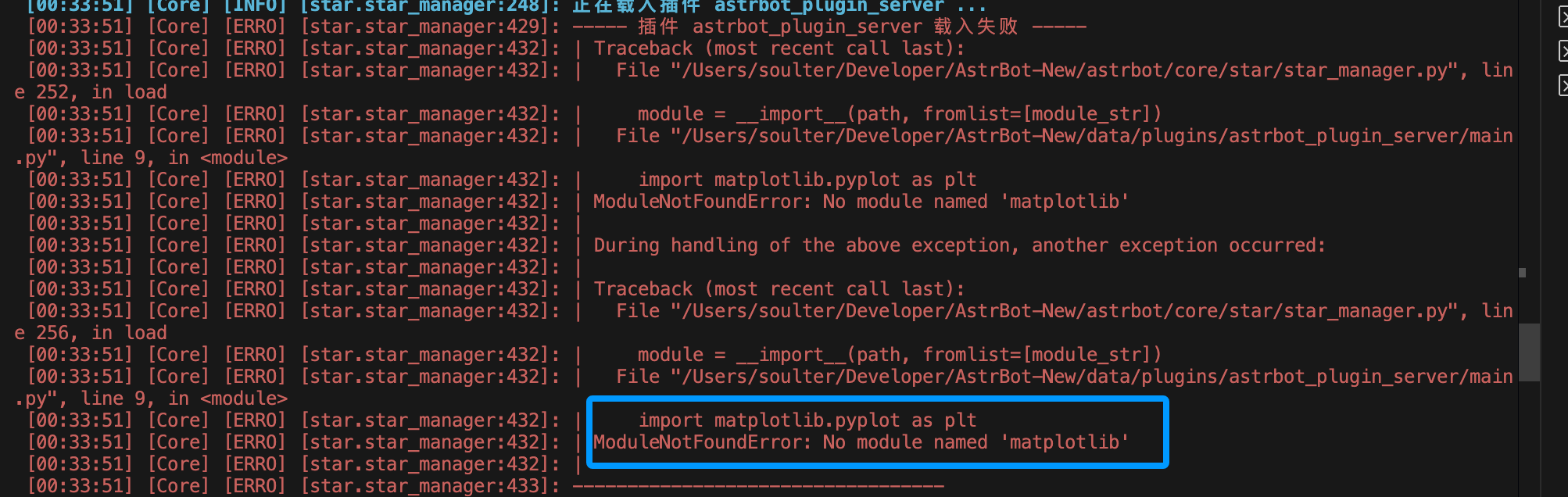
### Error `No module named 'xxx'` After Installing Plugin
|
|
|
|
|
|
|
|
This is because the plugin's dependencies were not installed properly. Normally, AstrBot automatically installs plugin dependencies after installing the plugin, but installation may fail in the following situations:
|
|
|
|
1. Network issues preventing dependency downloads
|
|
2. Plugin author did not include a `requirements.txt` file
|
|
3. Python version incompatibility
|
|
|
|
Solution:
|
|
|
|
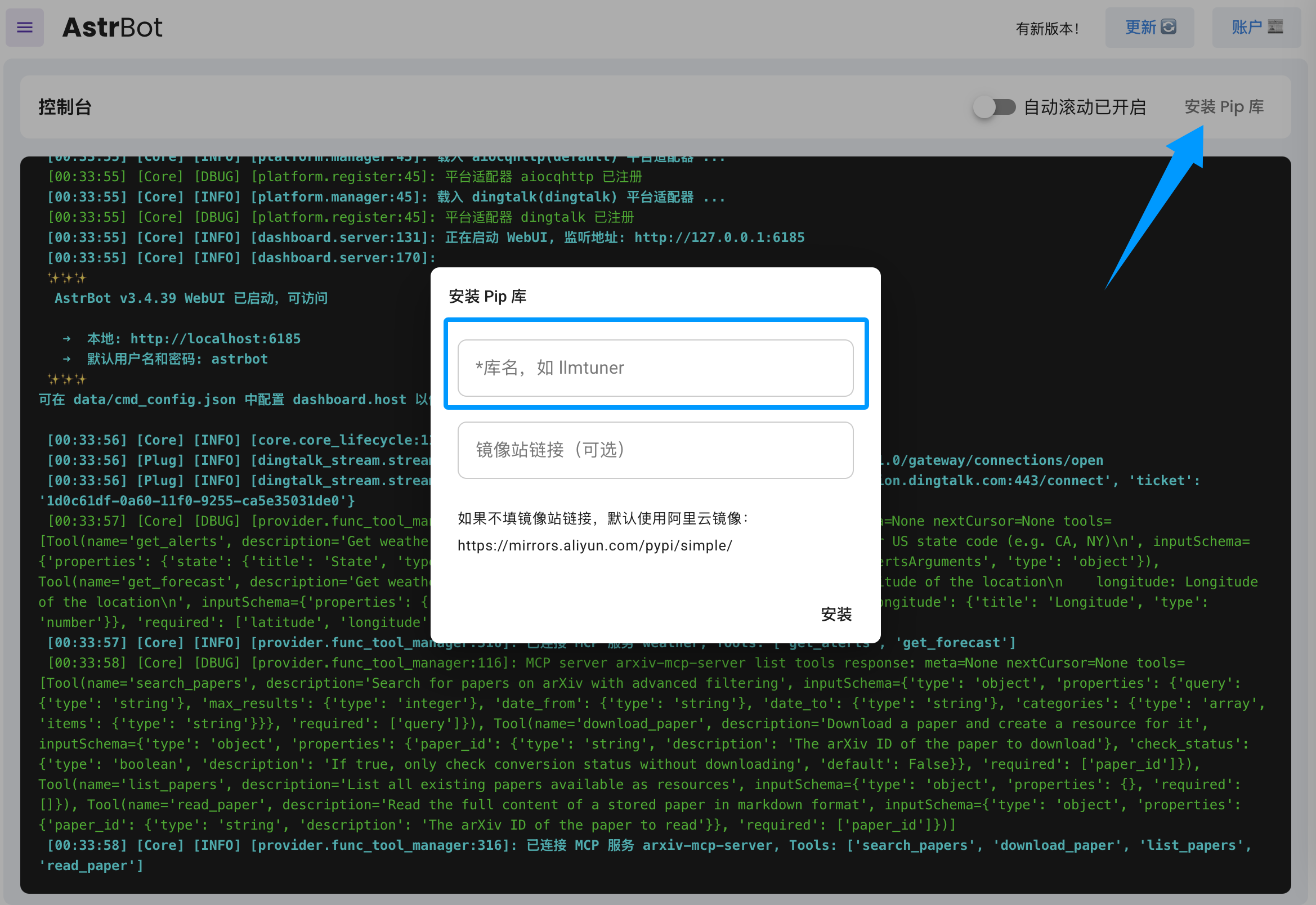
Based on the error message, refer to the plugin's README to manually install dependencies. You can install dependencies in the AstrBot WebUI under `Console` -> `Install Pip Package`.
|
|
|
|
|
|
|
|
If you find that the plugin author did not include a `requirements.txt` file, please submit an issue in the plugin repository to remind the author to add it.
|