mirror of
https://github.com/AstrBotDevs/AstrBot
synced 2026-07-17 01:49:15 +08:00
 ec21cb13d3
* feat(lark): 支持飞书 CardKit 流式输出

* refactor(lark): extract streaming fallback logic and deduplicate final text update

* fix(lark): 修复流式输出竞态条件及增强健壮性

- 修复 sender loop 中 delta 快照竟态: await 期间 delta 被 generator
  更新导致 last_sent 记录了未发送的值, 造成输出卡在最后一段
- send_streaming 入口增加 platform_meta 守卫, 未启用时直接回退
- _fallback_send_streaming 移除对已耗尽 generator 的 super() 调用,
  改为内联父类副作用 (Metric.upload + _has_send_oper)
- Metric.upload 统一改为 await, 确保指标上报在方法返回前完成
- 装饰器 support_streaming_message 改为 False, 与 meta() 动态配置对齐
- i18n hint 补充提示: 需在「AI 配置 → 其他配置」中开启流式输出

* chore(lark): 收口配置

* docs(lark): update streaming output instructions and client version requirements

---------

Co-authored-by: bread-ovo <2570425204@qq.com>
Co-authored-by: Soulter <905617992@qq.com>
122 lines
5.3 KiB
Markdown
122 lines
5.3 KiB
Markdown
# Connecting to Lark
|
|
|
|
## Supported Message Types
|
|
|
|
> Version v4.15.0.
|
|
|
|
| Message Type | Receive Support | Send Support | Notes |
|
|
| --- | --- | --- | --- |
|
|
| Text | Yes | Yes | |
|
|
| Image | Yes | Yes | |
|
|
| Voice | No | Yes | |
|
|
| Video | No | Yes | |
|
|
| File | No | Yes | |
|
|
|
|
Proactive message push: Supported.
|
|
|
|
Streaming output: Supported. You must enable the `Create and update cards (cardkit:card:write)` permission for your app in the Lark Developer Console.
|
|
|
|
The Lark client version must be >= 7.20. Lower versions only display the title and an upgrade prompt.
|
|
|
|
## Creating a Bot
|
|
|
|
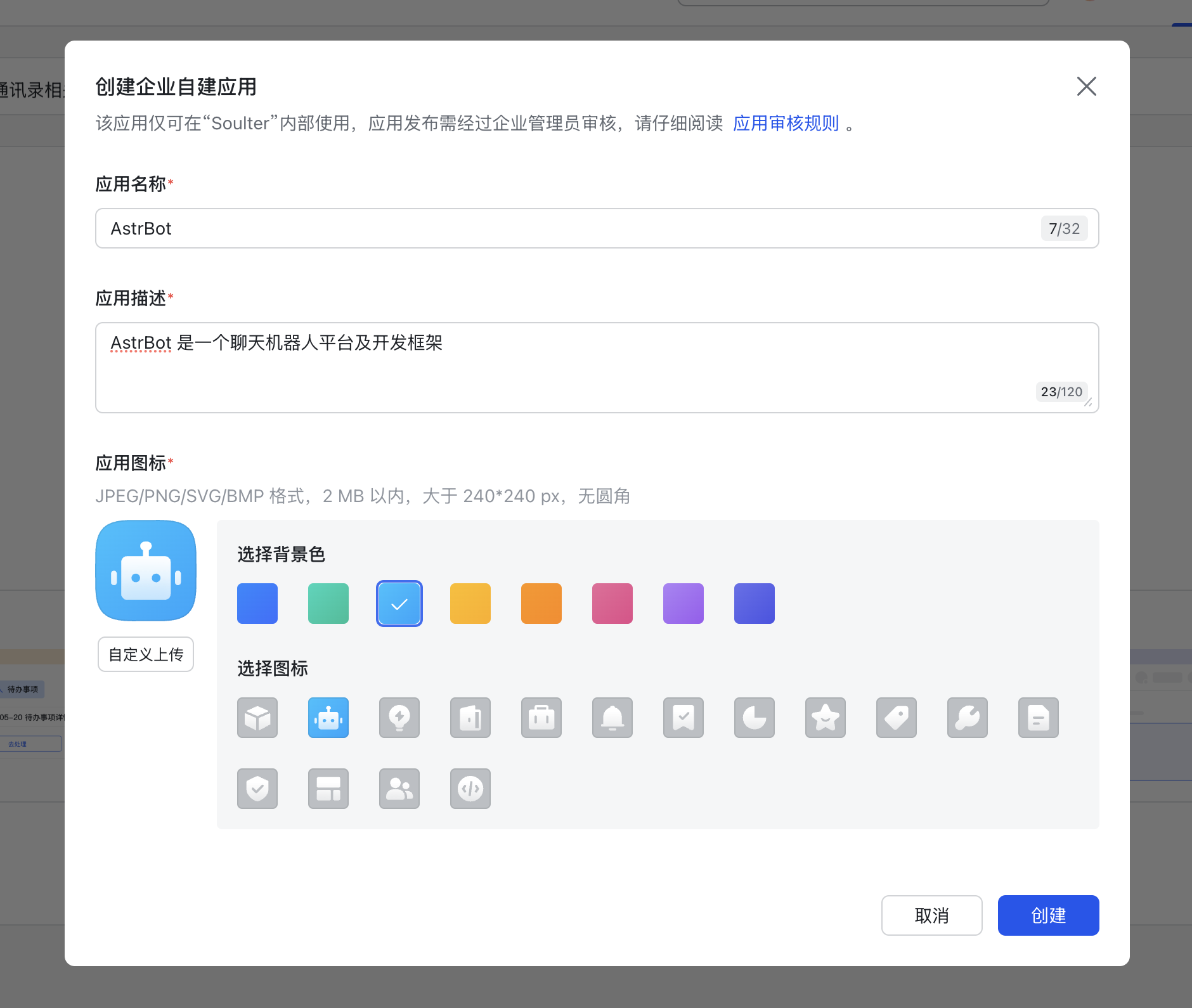
Navigate to the [Developer Console](https://open.feishu.cn/app) and create a custom enterprise application.
|
|
|
|
|
|
|
|
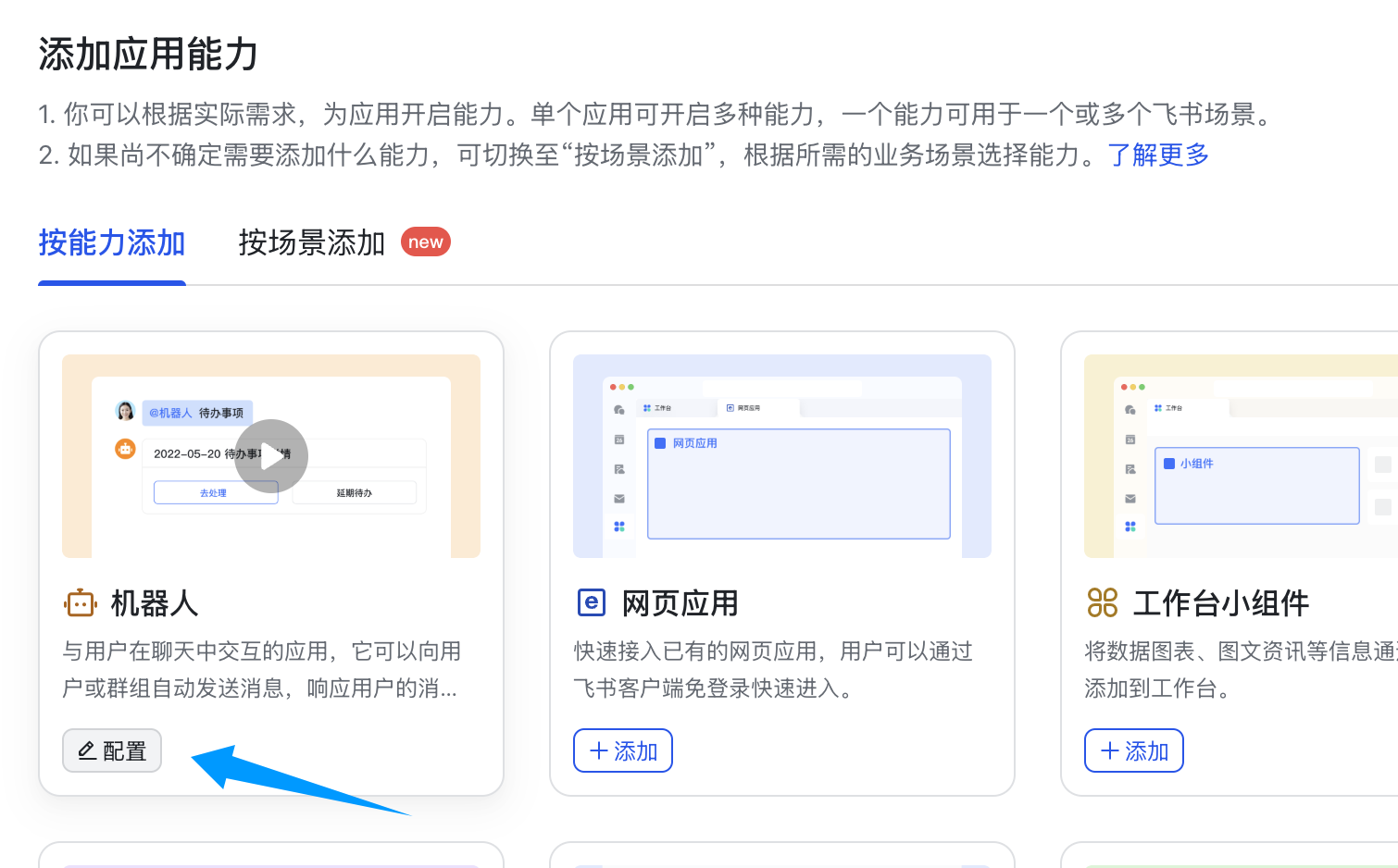
Add the Bot capability to your application.
|
|
|
|
|
|
|
|
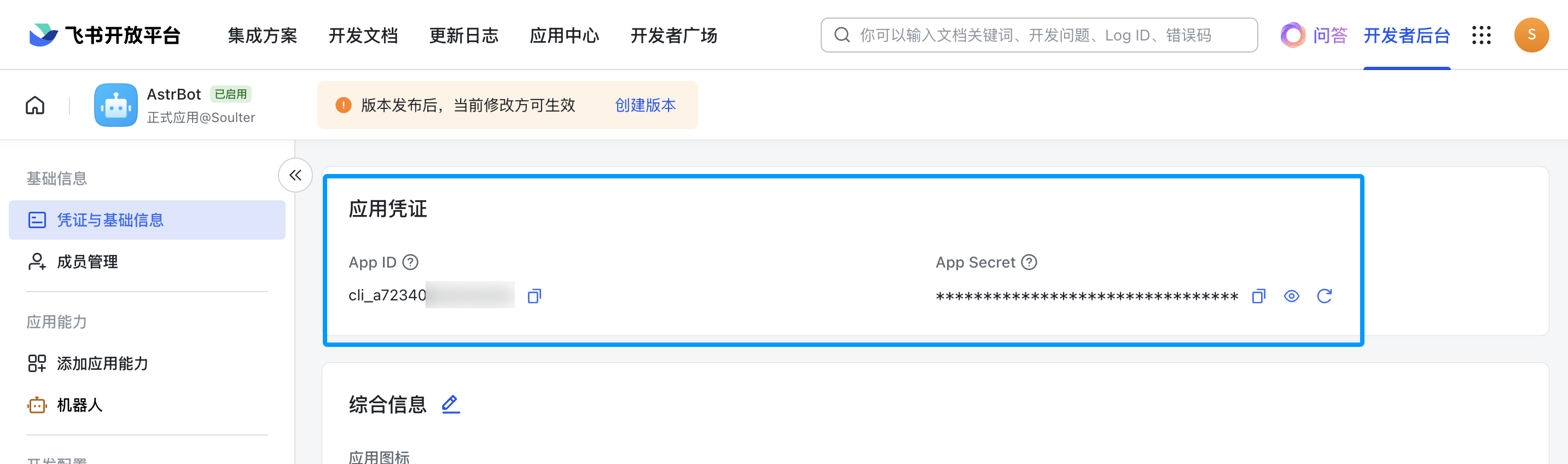
Click on "Credentials & Basic Info" to obtain your app_id and app_secret.
|
|
|
|
|
|
|
|
## Configuring AstrBot
|
|
|
|
1. Access the AstrBot management panel
|
|
2. Click on `Bots` in the left sidebar
|
|
3. In the right panel, click `+ Create Bot`
|
|
4. Select `lark`
|
|
|
|
Fill in the configuration fields as follows:
|
|
|
|
- ID: Choose any identifier to distinguish between different messaging platform instances
|
|
- Enable: Check this option
|
|
- app_id: The app_id you obtained earlier
|
|
- app_secret: The app_secret you obtained earlier
|
|
- Bot name: Your Lark bot's name
|
|
|
|
For the domain field, if you're using Lark China, keep the default value. If you're using Lark International, set it to `https://open.larksuite.com`. If you're using a self-hosted enterprise Lark instance, enter your Lark instance's domain.
|
|
|
|
For the subscription method, `socket` uses a long connection subscription approach, while `webhook` sends events to your developer server and requires a public server. Generally, `socket` is recommended. However, if you're using Lark International or a self-hosted Lark instance, choose `webhook`. The subsequent configuration steps will differ accordingly.
|
|
|
|
If you selected the `webhook` method, navigate to the Lark Developer Console, click on "Events & Callbacks," then "Encryption Policy," and fill in the Encrypt Key. While not mandatory, AstrBot takes your data security seriously, so we strongly recommend setting this up. After filling it in, copy the `Encrypt Key` and `Verification Token` to the corresponding `encrypt_key` and `verification_token` fields in AstrBot's configuration.
|
|
|
|
Click `Save`.
|
|
|
|
## Setting up Callbacks and Permissions
|
|
|
|
The following steps vary depending on the subscription method you selected above. Please proceed to the corresponding section based on your choice.
|
|
|
|
### `socket` Long Connection Method
|
|
|
|
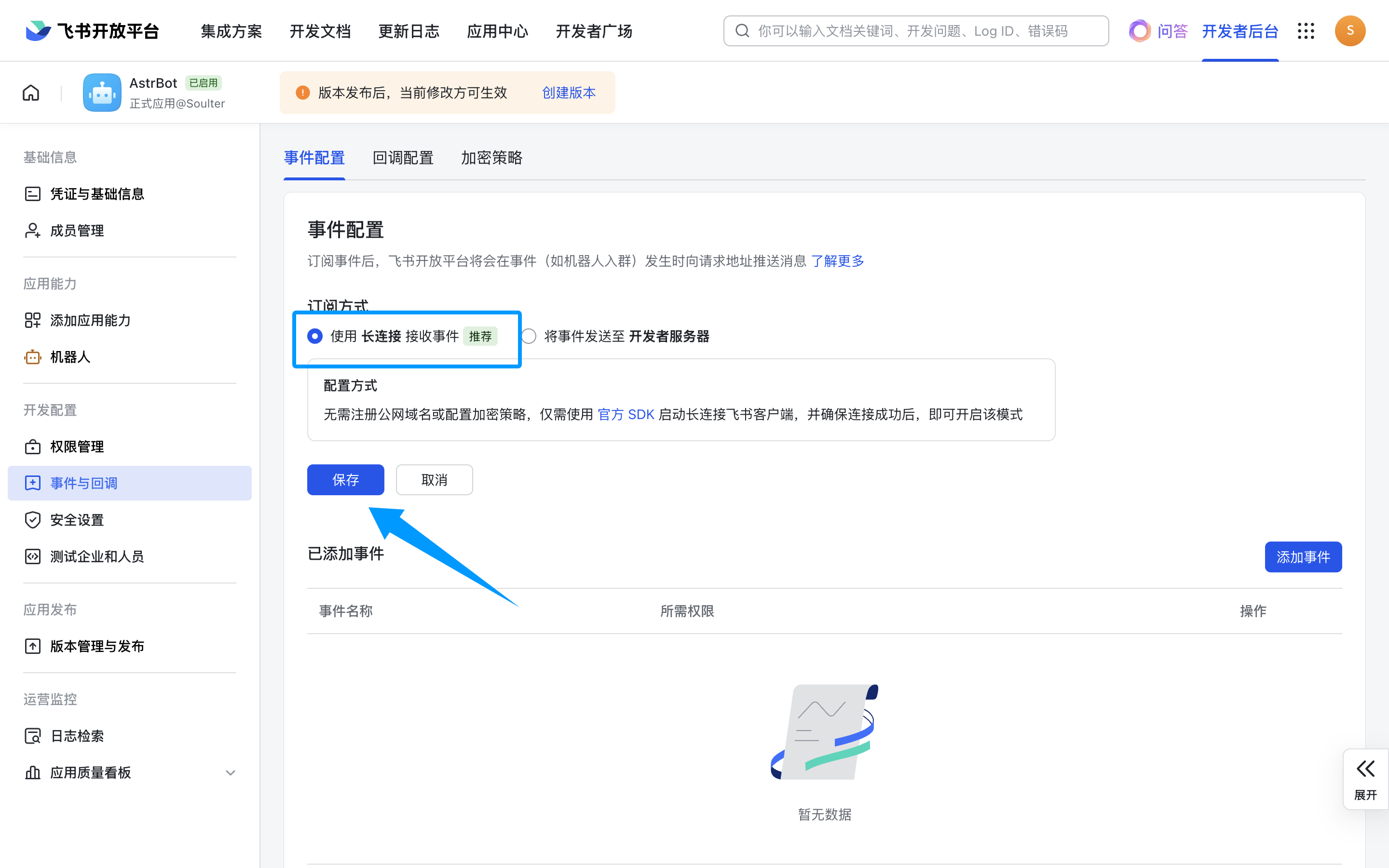
Next, click on "Events & Callbacks," select "Receive events using long connection," and click Save. **If the previous step didn't start successfully, you won't be able to save here.**
|
|
|
|
|
|
|
|
### `webhook` Send Events to Developer Server Method
|
|
|
|
> [!TIP]
|
|
> To make better use of this method, please refer to [Unified Webhook Mode](/en/use/unified-webhook.md#how-to-use-unified-webhook-mode) for the necessary configuration.
|
|
|
|
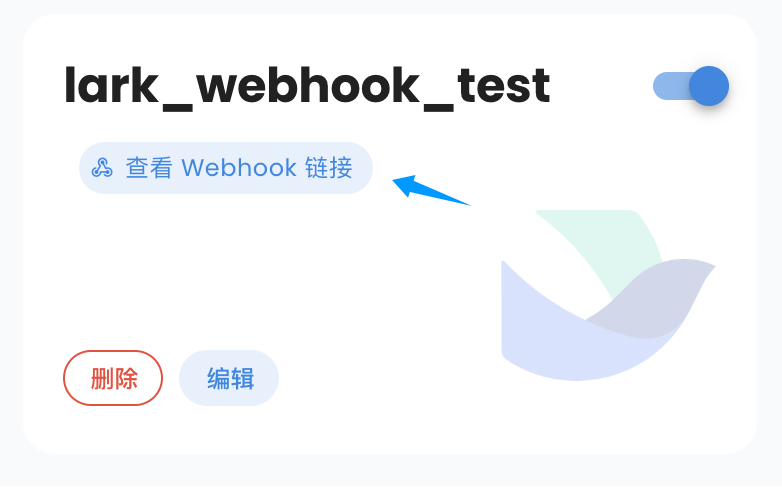
After clicking `Save`, the bot card will display "View Webhook URL." Click to view and copy the callback URL.
|
|
|
|
|
|
|
|
Next, return to Lark's Events & Callbacks page, click "Event Configuration," select "Send events to developer server," enter the callback URL you just copied as the "Request URL," and click Save. If everything is correct, no errors will appear.
|
|
|
|
### Setting up Events
|
|
|
|
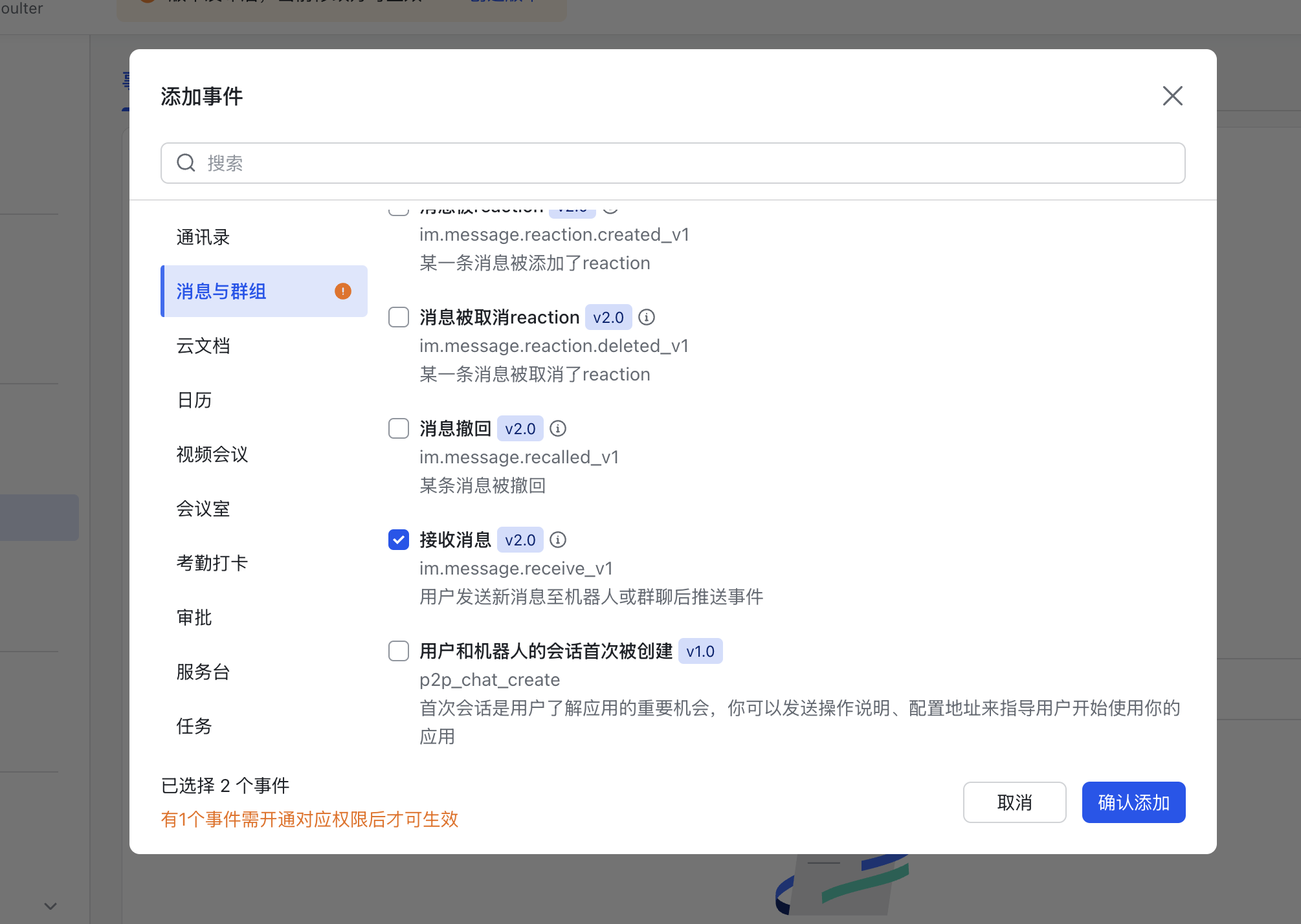
After completing the event configuration in the previous step, click "Add Event," navigate to "Messages & Groups," scroll down to find `Receive Message`, and add it.
|
|
|
|
|
|
|
|
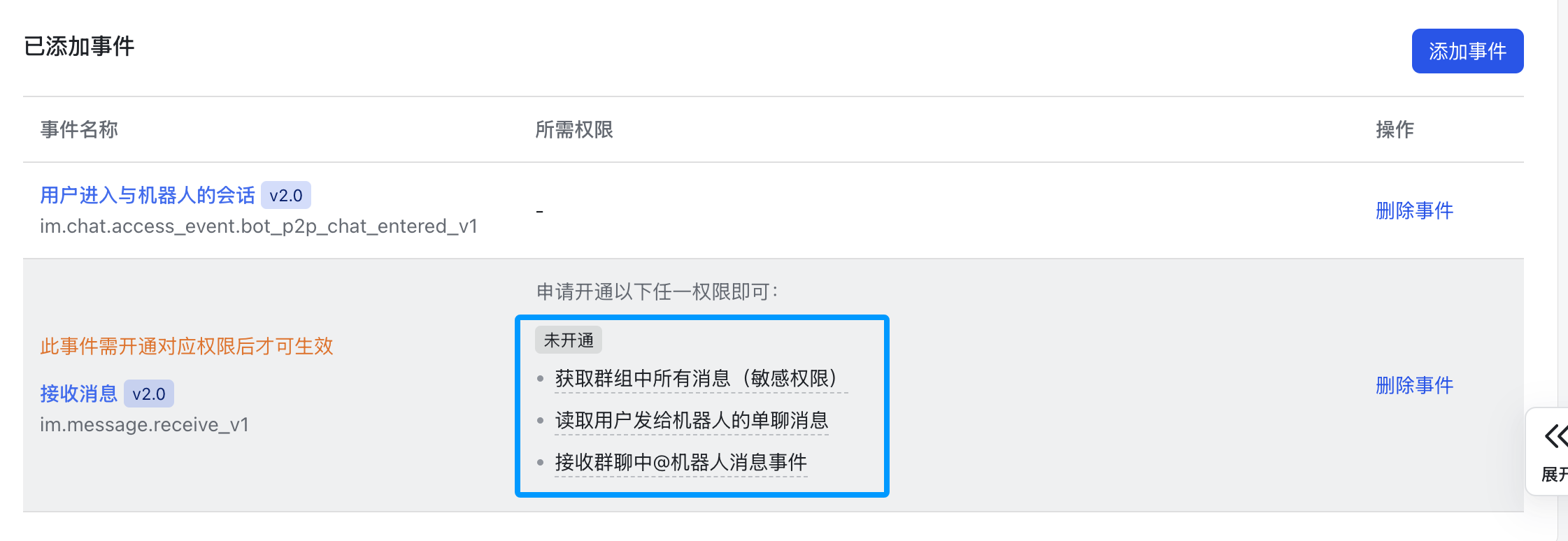
Click to enable the following permissions.
|
|
|
|
|
|
|
|
Then click the `Save` button at the top.
|
|
|
|
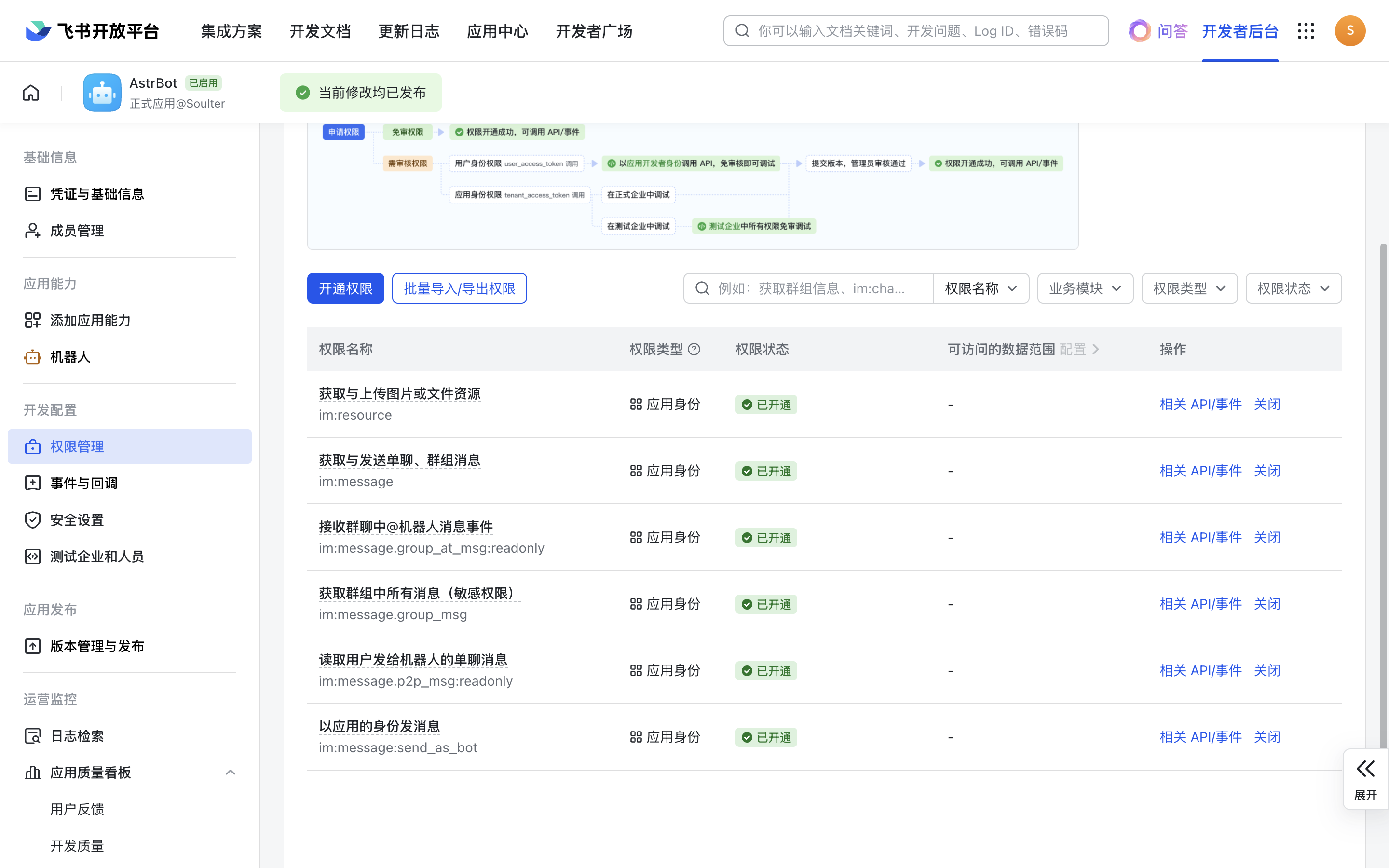
Next, click on "Permission Management," click "Enable Permissions," and enter `im:message:send,im:message,im:message:send_as_bot`. Add the filtered permissions.
|
|
|
|
Enter `im:resource:upload,im:resource` again to enable image upload permissions.
|
|
|
|
If you want to use streaming output, additionally enable `Create and update cards (cardkit:card:write)`.
|
|
|
|
The final set of permissions should look like this:
|
|
|
|
|
|
|
|
## Creating a Version
|
|
|
|
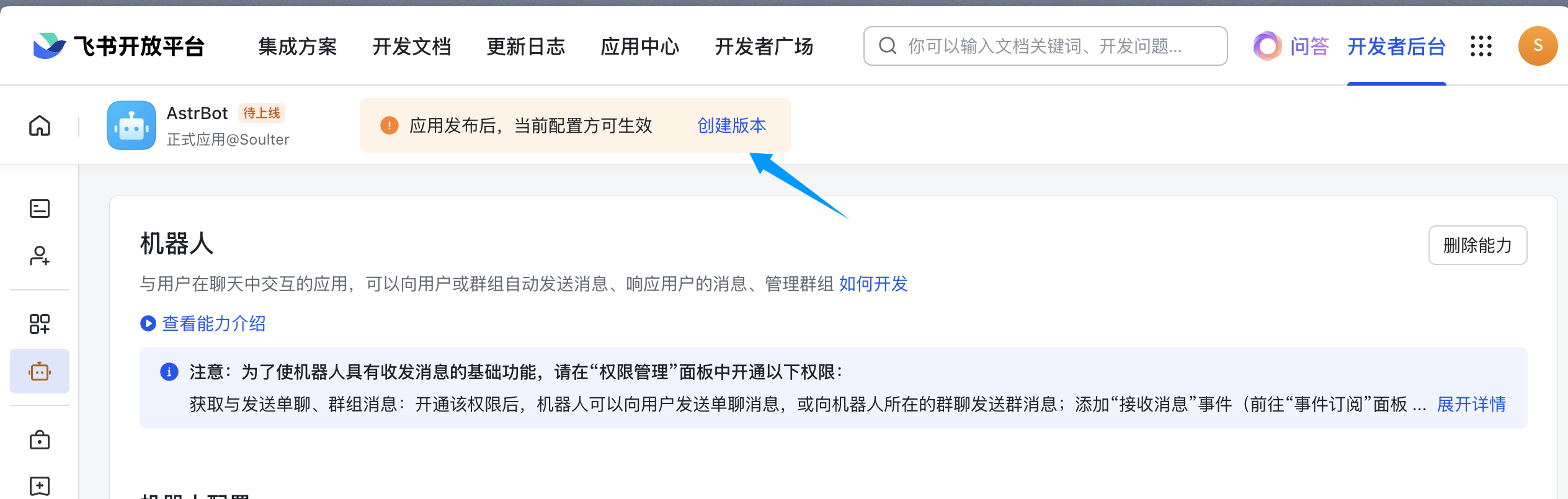
Create a new version.
|
|
|
|
|
|
|
|
Fill in the version number, update notes, and visibility scope, then click Save and confirm the release.
|
|
|
|
## Adding the Bot to a Group
|
|
|
|
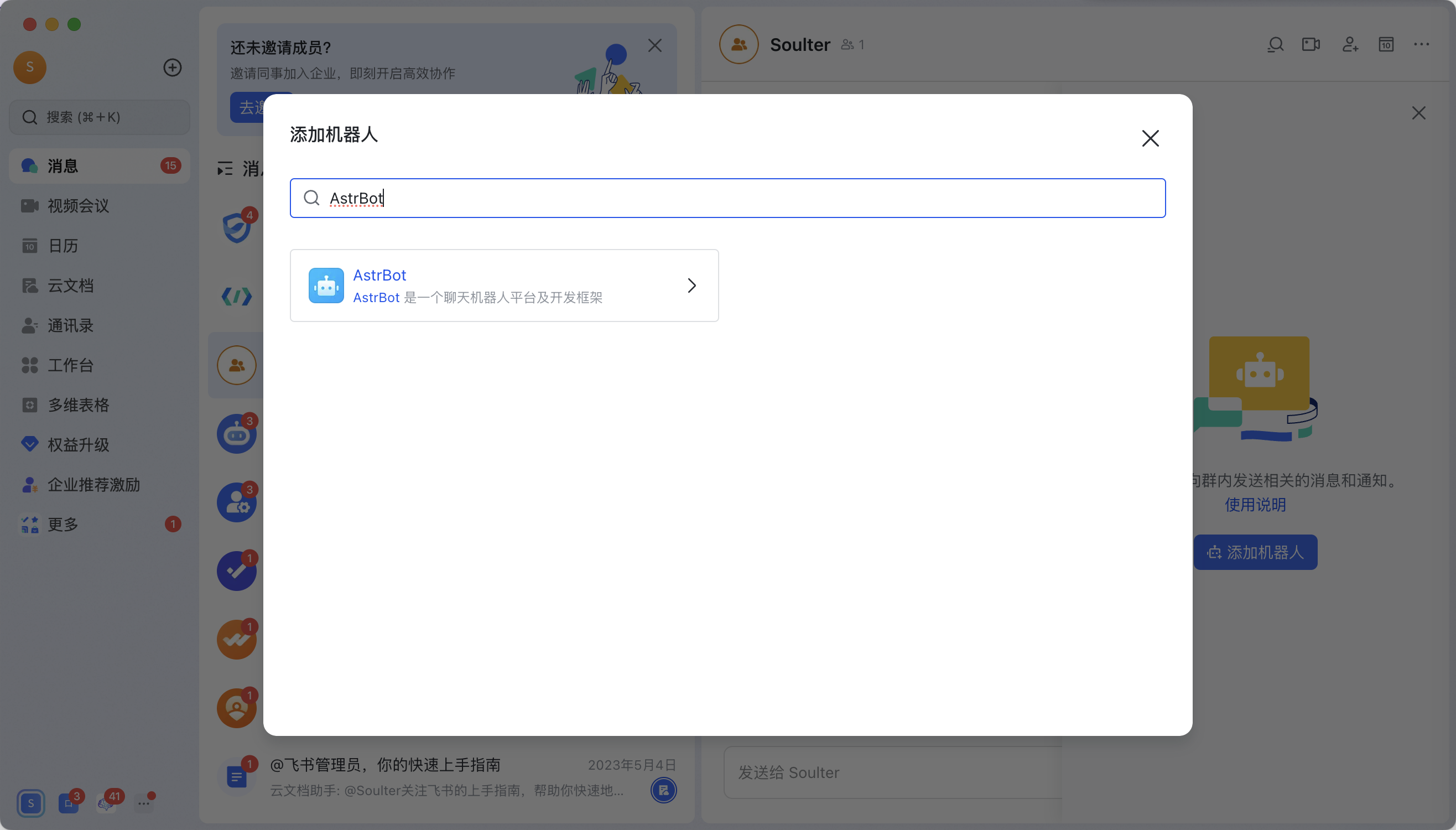
Open the Lark app (the web version doesn't support adding bots), enter a group chat, click the button in the upper right corner → Group Bots → Add Bot.
|
|
|
|
Search for the bot you just created. For example, if you created the `AstrBot` bot as shown in this tutorial:
|
|
|
|
|
|
|
|
## 🎉 All Done!
|
|
|
|
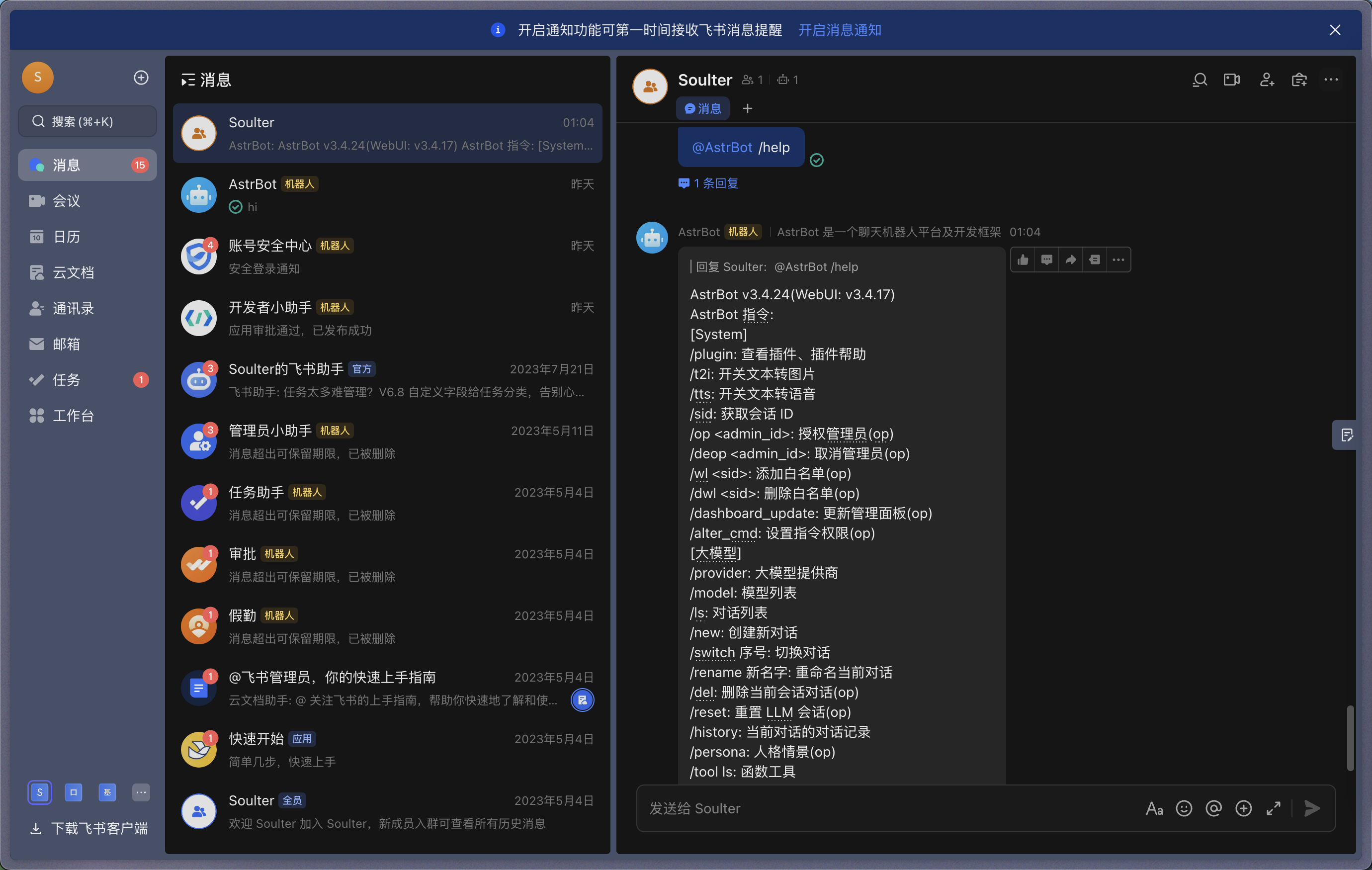
Send a `/help` command in the group, and the bot will respond.
|
|
|
|
|